 Start Free Trial
 What does an image optimizer app do on Shopify?
An image optimizer rewrites the photo stored in your Shopify admin, while Shopify still makes the light copy the shopper's phone downloads. The part worth paying for is the file name and the short description, and it is the wrong buy when the photo is slow to appear.

Edward Cameron · Founder, Whoosh
7 min read

In short
An image optimizer is a Shopify app that rewrites the photos stored in your admin. It shrinks the file, and on paid plans it renames it and writes the alt text, the short description search engines and screen readers use. Shopify already makes a smaller, lighter copy of each photo for the shopper's phone, so the shrinking mostly repeats that. Buy it for the names and descriptions, not for a photo that is slow to appear.
- An image optimizer changes the file stored in your admin. Shopify still makes the smaller copy the shopper's phone downloads.
- Shopify already shrinks every upload and sends a lighter kind of file to phones that can show one, so a free compression plan mostly repeats that step.
- The paid plan's extra job is renaming the file from the camera's name and writing the alt text, the short description of the photo.
- Click the photo in the admin. A camera name and an empty description box are the app's job. A photo that is slow to appear on the live page is not.
You upload the honey jar, and an app offers to optimize it
What does an image optimizer app do on Shopify? It rewrites the photo stored in your admin, and on its paid plans it also gives that photo a proper name and a short description. Shopify still makes the smaller copy a shopper’s phone downloads, whichever app you install.
Let’s stay with one product the whole way. You set a glass jar of your honey on the kitchen bench, catch the light coming through it, and take the photo on your phone. You upload it to the product in the admin, and it looks lovely, and the file is called IMG_4821.jpg because that is the name your phone gave it.
A week later you search the Shopify App Store for something to speed the store up, and an image optimizer sits near the top, promising to shrink your photos. So the fair question is which photo it shrinks, and whether the person looking at your honey ever sees the difference.
What the app changes, and what Shopify already does
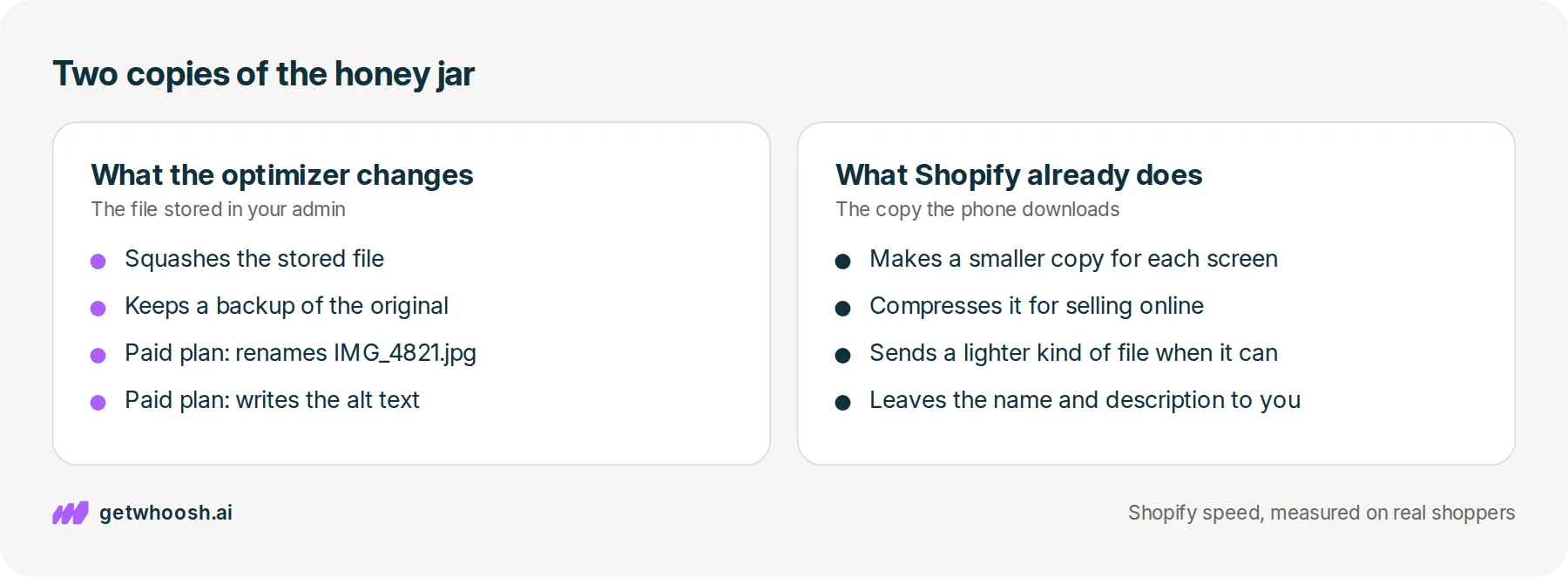
There are two copies of the honey jar. Keep them apart. The first is the file you uploaded, the one sitting in your admin. The second is the copy Shopify makes from it and sends to each shopper’s phone.
An image optimizer works on the first one. It squashes that stored file so it takes up less room, which people call compression, and it keeps a backup in case you want the original back.
On its paid plans it can also rename IMG_4821.jpg to something like raw-honey-jar.jpg and fill in the alt text, which is the short description of the photo that search engines read and a screen reader speaks aloud to someone who cannot see it.
Shopify does the second job on its own. Shopify’s image guide says you do not need to optimize images before you upload them, because Shopify already compresses each photo at a quality setting suited to selling online.
It also checks what kind of file the shopper’s phone can show and sends a lighter kind when it can, which Shopify’s developer docs name as WebP and AVIF. Shopify making that smaller, lighter copy for you is what people call its image CDN.
So what happens when the app squashes the stored jar first? Shopify makes the shopper’s copy from whatever file is in the admin. The same guide warns that shrinking a photo before Shopify gets it can leave a poor quality image, and that can mean lower conversions and more returns. With honey, the colour through the glass and the label are what sells it, so Shopify should start from the sharp file.
Crush is one of these apps, and its plans show the split well. The Crush listing on the App Store shows a free plan with a one-time 25 MB allowance, compression, and a 30-day backup, and no renaming. Renaming the file and writing the alt text start on the Micro plan, which the same listing prices at $4.99 a month for 500 MB of photos.
Check your store's real numbers
The free Whoosh audit measures your store on real shopper data, names the scripts in the way, and estimates what the delay is costing. No install, about a minute.
Free. No install. Results in about a minute.
Why the name and the description are worth paying for
So, did the free plan do anything for the jar? A little. The stored file is smaller, and the backup lets you undo it. But the shopper’s phone was already getting a small, light copy from Shopify, so on the page they see, the free plan mostly repeats a step that was already done.
I know what you’re thinking. You already pay for an optimizer, so the photos should be sorted. The stored files are smaller. The next question is whether your plan also named them, because that is the part Shopify never does.
Naming is the paid plan’s job. Shopify does not name your file or describe your photo, so the admin keeps whatever name the camera chose, and the alt text box stays empty until someone types in it.
Does that matter? Google’s guide to images in search says alt text is the most important detail for describing a photo to Google, and that a screen reader speaks it to someone who cannot see the photo. The same guide says a descriptive file name gives Google a lighter clue, and Shopify’s image guide puts it plainly: replace camera-generated names with words that identify the product.
So IMG_4821.jpg with an empty box tells Google and a screen reader nothing about honey. raw-honey-jar.jpg with the alt text “Glass jar of raw honey with a wooden dipper” tells both of them what is in the photo. Write it the way you would describe the jar to a friend on the phone, and resist saying honey over and over, because Google’s guide warns against stuffing keywords in.
For one jar, that is a couple of minutes by hand. For a shop with a few hundred photos, it is a lot of typing, and that is where Crush is stronger than Whoosh. Crush’s paid plans rename files and write alt text across the whole catalogue, and keep a 30-day backup of the photos they change. Whoosh does none of that.
Now the bad news, plainly. If the jar is slow to appear on the shopper’s phone, neither plan is the fix. Squashing the stored file and renaming it do not change when the phone starts fetching the jar, or what the page loads in front of it.
So the decision comes down to what you find on the photo. A camera name and an empty description are the app’s job, or yours by hand. A jar that is slow to appear is a different job, and paying for renaming will not move it.
Click the honey jar’s photo, then open the live page
Here is the check, in the order you would click.
-
In the Shopify admin, go to Products and open the honey jar.
-
Click the photo, so the window with its details opens.
-
Read the file name and the alt text box.
IMG_4821.jpgand an empty box means the name and the description are the problem, whileraw-honey-jar.jpgand a sentence about the jar means that part is done.
If the name is still the camera’s and the box is empty, you have two ways to fix it. For this one jar, type a plain description into the box and save, then rename the file on your computer, add it to the product, and remove the old one. For the whole catalogue, that is the job Crush’s paid plan does.
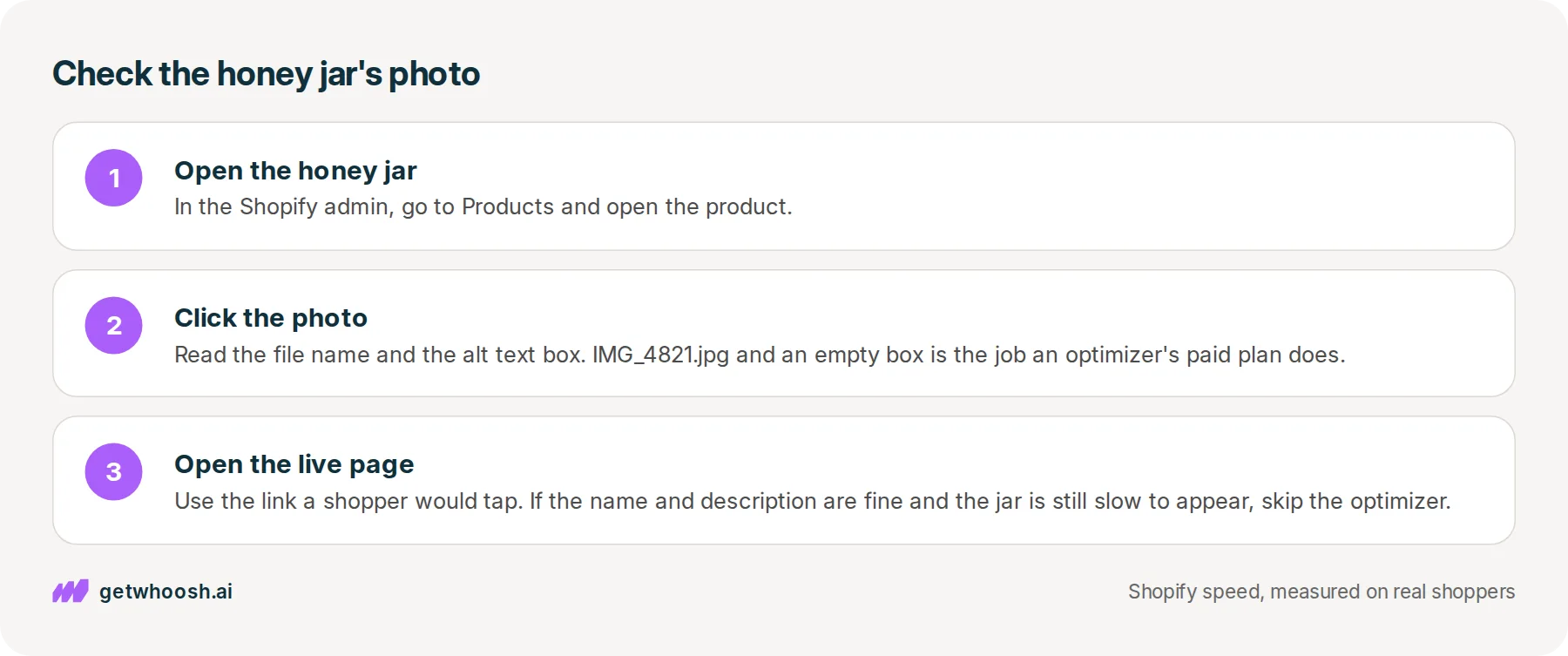
Then open the live product page on your phone, using the link a shopper would tap. If the name and the description were already fine and the jar still takes its time to show up, the optimizer is the wrong buy. The table of speed apps matches each listing to the wait it fixes.
Start with the theme check in why Shopify image optimization still leaves photos slow, which shows whether your theme asks for the right copy of the jar. If a signup popup lands before the jar does, whether Klaviyo slows your store covers that one.
Once the theme is right, one wait is left. The phone reads the page from the top, so it only asks for the jar when it reaches that part of the page, and closing that gap is the one job Whoosh does here.
AI Page Preloading looks at which photo real visitors see first on each page, and tells the phone to start fetching that photo early. It does not compress photos, rename files, or write alt text, and it does not copy your theme, so it sits alongside an optimizer rather than replacing one. AI Page Preloading is US$99 a month with a 7-day free trial.
You can stop when the jar’s file has a real name, the alt text box describes what is in the photo, and the jar turns up on the live page before anything else does. If you want a second opinion on that page, the speed check measures it for you.
Questions merchants ask
Do I need to uninstall the image optimizer I already have?
Check what your plan does first. If it renames files and writes alt text for you, that is a job Shopify leaves to you, so it can stay. If compressing uploads is all it does, it repeats a step Shopify already takes. Before you remove it, look over a few photos it changed, while its backup can still restore them.
Will my product photo look worse after an optimizer compresses it?
It can. Shopify makes the shopper's copy from the file in your admin, and Shopify's image guide warns that shrinking a photo first can leave it poor quality. Zoom in on the label and the colour after the app runs. If it looks blotchy, restore the original from the app's backup.
Does the free plan rename my files?
On the Crush listing, no. Its free plan lists compression and a backup, and renaming files and writing alt text start on the paid Micro plan. Other optimizer apps split their plans differently, so read the plan list on the App Store listing before you install.
What should the alt text on a product photo say?
What you would say if you described the photo to a friend on the phone, like "Glass jar of raw honey with a wooden dipper". Name the product and what is in the shot. Google's image guide warns against stuffing keywords, so say the product once.
Should I convert my photos to WebP before I upload them?
No. Shopify checks what kind of file each shopper's phone can show and sends a lighter one when it can. Upload the sharp photo you took, and let Shopify make the copies.
Sources (4, checked 28 Sept 2026)
- 1 Shopify's image optimization guide (shopify.com, checked 28 Sept 2026)
- 2 Shopify developer docs on the image_url filter (shopify.dev, checked 28 Sept 2026)
- 3 Google Search Central on images in search (developers.google.com, checked 28 Sept 2026)
- 4 Crush: Speed & Image Optimizer on the Shopify App Store (apps.shopify.com, checked 28 Sept 2026)
The plan details come from the Crush listing on the Shopify App Store, and the upload advice from Shopify's image guide, both checked on 28 Sep 2026. The honey jar is an example, not a real store.
How posts are chosen, sourced, checked and corrected: our editorial policy.
Written by Edward Cameron Founder, Whoosh, Sydney, Australia
Edward Cameron is the founder of Whoosh, the Shopify speed app made in Sydney and on the Shopify App Store since August 2025. He writes here about what slows a Shopify product page and how to check it on your own store.
Keep reading
All posts
Apps & scripts 6 min read
Why Shopify image optimization still leaves photos slow
Shopify already makes small, light copies of the product photo you upload. The shopper still waits when the theme asks for the biggest copy, or makes the first photo queue behind the rest of the gallery.

Speed apps & tools 7 min read
Which Shopify speed optimization app should you install?
Every speed app on the Shopify App Store promises a faster store. Each one clears a different thing out of your product photo's way, and one look at your own product page tells you which one you need.

Apps & scripts 6 min read
Does Klaviyo slow down your Shopify store?
You added Klaviyo so you can reach shoppers after they leave. That needs a small program on the product page, and it only slows the store when it starts before the product photo.
