 Start Free Trial
 Why Shopify image optimization still leaves photos slow
Shopify already makes small, light copies of the product photo you upload. The shopper still waits when the theme asks for the biggest copy, or makes the first photo queue behind the rest of the gallery.

Edward Cameron · Founder, Whoosh
6 min read Updated

In short
Shopify image optimization means Shopify takes the sharp photo you upload and makes smaller, lighter copies of it for each shopper's screen, so you do not need to shrink it first. The photo is still slow when your theme never tells the phone how wide the picture will sit on screen, so it grabs the biggest copy, or when the first photo waits its turn behind the rest of the gallery.
- Upload the sharp JPEG. Shopify makes the smaller copies, plus a lighter WebP or AVIF file for browsers that can show one.
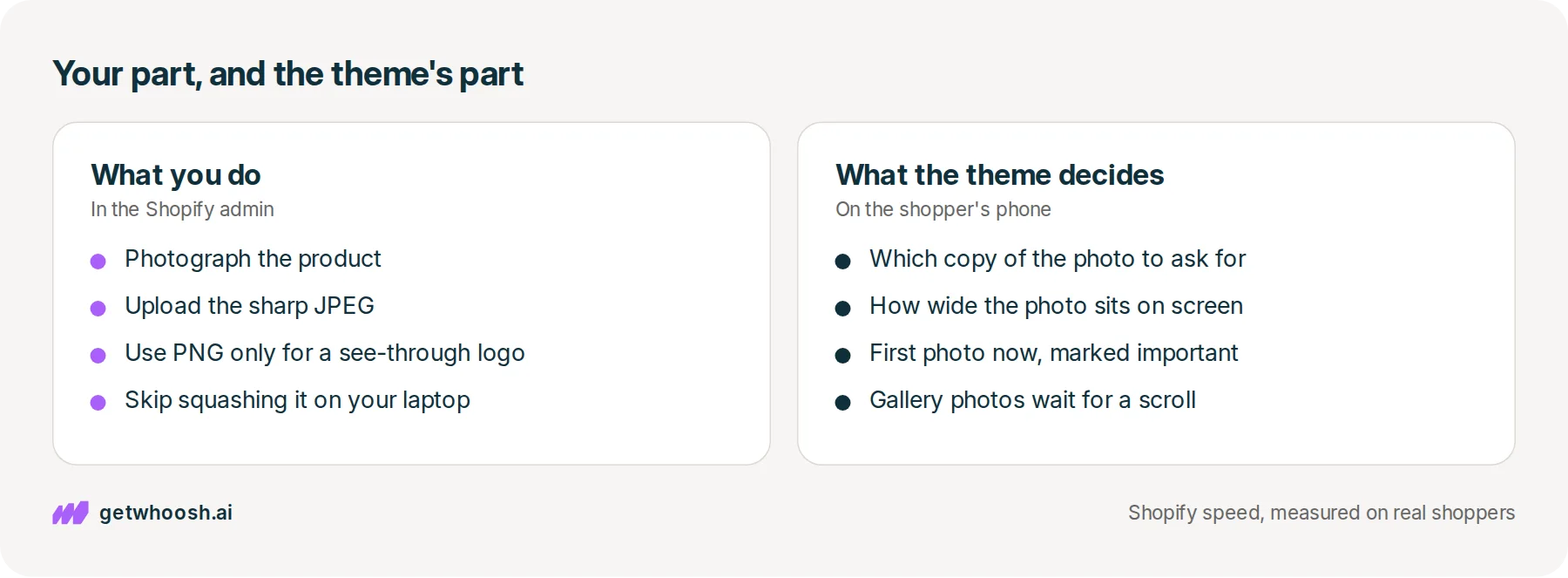
- Your theme decides which copy the phone downloads. Without a hint about how wide the photo sits on screen, the browser takes the largest.
- The first photo should load straight away and be marked high priority, while the gallery below it waits for a scroll.
- A right-click and Inspect on your own product page shows all three instructions on one highlighted line.
A shopper on the bus taps your linen shirt
Why does Shopify image optimization still leave photos slow? Because Shopify has already made your photo small, and what the shopper waits for is which copy your theme asks for, and when.
Let’s stay with one product the whole way through. You photograph a linen shirt against a white wall, upload the sharp JPEG in the admin, and it looks lovely on your laptop. Then a shopper on the bus taps the shirt from an ad on their phone, and for a moment there is a grey box where the shirt should be.
That grey box is what this post is about. Nothing is wrong with the photo you took, and you do not need to make the file smaller before it goes up. The wait comes from choices made after you clicked upload, by Shopify and by your theme, which is the design your store runs on.
What happens to the shirt after you upload it
OK, so what does Shopify do with the file? It keeps your sharp original and makes smaller copies of it for different screens. When the shopper’s phone can show a lighter kind of file, it gets that instead of the JPEG. Shopify’s image guide names those lighter files WebP and AVIF, and says you do not need to make any of them yourself. That automatic shrinking is what Shopify means by image optimization.
But Shopify does not know how big the shirt will look on the bus. Your theme does. The theme has to hand the phone a menu of those copies, and then tell it how wide the photo will sit on the screen, whether that is the full width of a phone or half of a laptop. With both, the phone picks the smallest copy that still looks sharp.
When the theme skips that, the phone plays it safe. Shopify’s notes for theme builders say that if the width hint is missing, the phone’s browser assumes the photo fills the whole screen and downloads the largest copy. If the theme offers no menu at all, the phone gets the same big file a desktop gets. Developers call the menu srcset and the width hint sizes, and you will see both words in a minute.
There is a second choice, and it is about order. Your shirt has a handful of photos in its gallery, but the shopper on the bus only sees the first one. Shopify’s advice on theme images is that the first visible photo loads straight away and is marked as the important one, while every photo further down waits until the shopper scrolls toward it. That waiting is called lazy loading.
Get the order backwards and the shirt turns up last. If the first photo is marked lazy, the phone treats the one picture the shopper is staring at as something that can wait. Google calls the moment that main photo appears Largest Contentful Paint, and its guide says a good page gets there in 2.5 seconds or less.
In the theme’s code, a first photo that gets both choices right looks roughly like this. You do not have to write it, only recognise it when you see it:
<img src=".../linen-shirt.jpg?width=1200"
  srcset=".../linen-shirt.jpg?width=400 400w, .../linen-shirt.jpg?width=800 800w, .../linen-shirt.jpg?width=1200 1200w"
  sizes="(min-width: 990px) 50vw, 100vw"
  loading="eager"
  fetchpriority="high">
The srcset line is the menu of copies. The sizes line says the shirt fills a phone screen and half of a wide one. The word eager means fetch it now, and fetchpriority="high" puts it ahead of the other files the page wants.
Check your store's real numbers
The free Whoosh audit measures your store on real shopper data, names the scripts in the way, and estimates what the delay is costing. No install, about a minute.
Free. No install. Results in about a minute.
Why you can stop shrinking photos before you upload
This is the useful bit, and it gives you an evening back. Plenty of guides and apps tell you to squash every photo on your laptop before it goes into Shopify. Shopify’s image guide says you do not need to, and to upload the highest-quality photo you have, because the storefront copies are made from it.
Squashing it first can make things worse. Every copy Shopify makes starts from your file, so a shirt that went blotchy on your laptop stays blotchy on every phone. For the upload itself, the same guide suggests a JPEG for product photos and a PNG only for something with a see-through background, like your logo.
I know what you’re thinking. You already pay for an image compressor app. Some of those apps earn their keep on a different job, like writing the short descriptions search engines read, or renaming files. But compressing the upload is a step Shopify already takes, and it never touches the two choices in your theme: which copy the phone asks for, and which photo goes first.
So here is the decision this earns. Leave the upload alone, and spend the time on the one line in your theme that tells the phone how to fetch the shirt.
Check the shirt on your own product page
Here’s the awkward part. If your theme gets either choice wrong, no setting on the upload will fix it. The good news is you can see which one it is with a right-click.
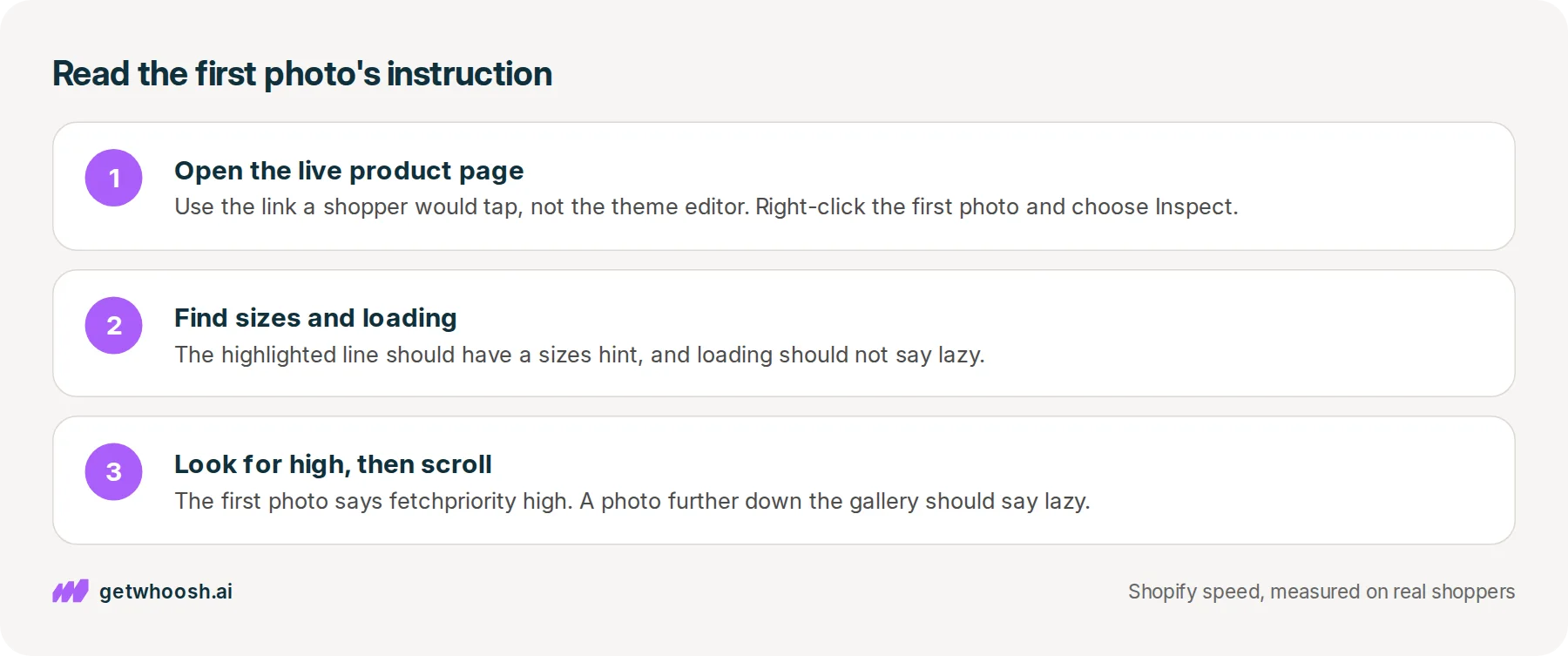
Open your live product page on a laptop, using the link a shopper would tap, not the theme editor. Right-click the first photo and choose Inspect. A panel opens beside the page with one line highlighted that starts with <img, and that line is the theme’s instruction for the shirt.
Look for three words on it, in this order:
-
sizesshould be there, with widths inside it like the example above. If it is missing on the first photo, the phone may be taking the biggest copy. -
loadingshould not say lazy. If it does, the shirt the shopper is looking at is waiting behind files that matter less. -
fetchpriorityshould say high on this photo, and on no other photo on the page.
Then scroll down to a photo further along the gallery, right-click it, and choose Inspect again. That one should say lazy. If it says eager and high as well, every photo is asking to go first, and the shirt has to share the line.
If something is off, send that highlighted line to whoever built or sells your theme, or check whether the theme has an update. The Shopify notes linked above describe this exact fix, so you can point them straight at it.
Once those three words are right, one gap is left. The phone reads your page from the top, so it only asks for the shirt when it reaches that line, and Google’s guide to that photo says it should start loading as early as possible. Closing that gap is the one job Whoosh does here.
Whoosh looks at which photo real visitors see first on each page, and tells the phone to start fetching that photo early. It does not compress your photos, and it does not copy your theme or rewrite that line for you, so a first photo marked lazy is still a theme fix. That is Whoosh’s AI Page Preloading plan, US$99 a month with a 7-day free trial.
If you already installed a speed app, the table of speed apps matches each listing to the wait it fixes, including a huge photo.
You can stop when the first photo has a sizes hint, does not say lazy, says high, and the gallery below it waits its turn. If the shirt is still slow after that, look at what loads ahead of it, like a signup popup, which is how Klaviyo can slow a page. The speed check measures that page for you, and the FAQs cover what installing Whoosh changes.
Questions merchants ask
Will my photos look worse if I stop compressing them first?
No. Shopify makes every storefront copy from the file you upload, so a sharp original gives sharp copies. A photo you squashed by hand can go blotchy, and Shopify then sends that blotchy version to every shopper.
Should I upload WebP instead of JPEG?
Upload a JPEG for product photos. Shopify sends WebP or AVIF on its own when the shopper's browser can show them, so you do not need to make those files. Save PNG for a logo or graphic that needs a see-through background.
Is there a limit on how big the upload can be?
Yes. Shopify's own post on image search says the largest file it takes is 20 megabytes. If an upload is refused, that limit is the reason, and resizing that one file is enough.
Do I need to uninstall my image compressor app?
Check what else it does first. If it writes alt text, the short description search engines and screen readers use, or renames files, that job is separate and can stay. If compressing uploads is all it does, it repeats a step Shopify already takes.
What if my theme marks the first photo lazy and I cannot edit code?
Send the theme's developer the highlighted line from Inspect and ask for the first product photo to load eagerly with high priority. Shopify's notes for theme builders describe that change, so it is a standard request. Check whether a newer version of your theme is out as well.
Sources (6, checked 28 Sept 2026)
- 1 Shopify's image optimization guide (shopify.com, checked 28 Sept 2026)
- 2 Shopify on image SEO (shopify.com, checked 28 Sept 2026)
- 3 Shopify on responsive images (shopify.dev, checked 28 Sept 2026)
- 4 Shopify on responsive theme design (shopify.dev, checked 28 Sept 2026)
- 5 web.dev on Largest Contentful Paint (web.dev, checked 28 Sept 2026)
- 6 web.dev on optimizing LCP (web.dev, checked 28 Sept 2026)
How Shopify handles uploads and theme images comes from Shopify's image guide and its notes for theme builders, linked in the sources. This post uses no private store data.
How posts are chosen, sourced, checked and corrected: our editorial policy.
Written by Edward Cameron Founder, Whoosh, Sydney, Australia
Edward Cameron is the founder of Whoosh, the Shopify speed app made in Sydney and on the Shopify App Store since August 2025. He writes here about what slows a Shopify product page and how to check it on your own store.
Keep reading
All posts
Apps & scripts 7 min read
What does an image optimizer app do on Shopify?
An image optimizer rewrites the photo stored in your Shopify admin, while Shopify still makes the light copy the shopper's phone downloads. The part worth paying for is the file name and the short description, and it is the wrong buy when the photo is slow to appear.

Apps & scripts 6 min read
Do you need a Shopify CDN, or do you already have one?
Your Shopify store already sends each product photo from a computer near the shopper, so a report telling you to add a CDN is asking you to buy something you have. The part worth checking is whether the photo was uploaded to Shopify or pasted in from somewhere else.

Apps & scripts 6 min read
Does Klaviyo slow down your Shopify store?
You added Klaviyo so you can reach shoppers after they leave. That needs a small program on the product page, and it only slows the store when it starts before the product photo.
