 Start Free Trial
Why does the Add to cart button jump on my Shopify store?
A shopper reaches for Add to cart on your cream stoneware pitcher, and the button drops because a bar arrived with no gap kept for it. Here is why that happens, what you can leave alone, and the reload that tells you which thing moved.

Edward Cameron · Founder, Whoosh
7 min read

In short
A CLS issue on Shopify is the page moving under a shopper's thumb while it loads. They reach for Add to cart on your cream stoneware pitcher, a bar or a photo arrives late with no gap kept for it, and the button drops as they tap. Google scores that movement as cumulative layout shift, or CLS. Most themes already keep the photo's gap, so the usual cause is something an app adds above the button.
- The button drops because something arrived late, like a free-shipping bar, and the page kept no space for it, so everything under it was pushed down.
- Most themes already give the product photo its size, and Dawn does it in the code that draws the photo, so the pitcher photo is rarely the thing that moves.
- A move straight after the shopper's own tap does not count. The jumps that matter are the bar, the popup, and the reviews block nobody asked for.
- Reload the live pitcher page on your phone, watch Add to cart, and stop when you can name what appeared above it. The theme maker gets the photo, and the app's support gets the bar.
A shopper reaches for Add to cart on your cream pitcher
A CLS issue on Shopify is the page moving under a shopper’s thumb while it is still loading. Something arrives late, nobody kept a space for it, and everything below it gets shoved down. The worst thing to shove is the Add to cart button.
Let’s stay with one product the whole way through. A shopper on their phone has opened your cream stoneware pitcher. The photo is up, the price is there, and they have already decided it is going on the kitchen table, so their thumb heads for Add to cart.
Then a free-shipping bar slides in at the top of the page. Everything under it drops by the height of that bar, the button included, and the tap lands on the photo instead. Now they are looking at a zoomed-in pitcher, not a cart.
Nothing on the page says error. The shopper just finds it fiddly, closes the photo, and tries again, or doesn’t. The bar was not the problem. Arriving without a gap left for it was.
Why the button drops, and the gap nobody kept
So why does the button move at all? Your shopper’s phone draws the pitcher page from the top down, as the pieces arrive. When it reaches something that has not arrived yet, it has to decide how much room to leave.
If the page says how big that thing will be, the phone keeps an empty space that size. The bar or the photo turns up a moment later and fills its space, and the button under it never moves.
If the page does not say, the phone leaves no room at all. It puts the price and the button straight under whatever is already there. When the late thing finally lands, the phone makes room by pushing everything below it down, and that push is the drop your shopper felt.
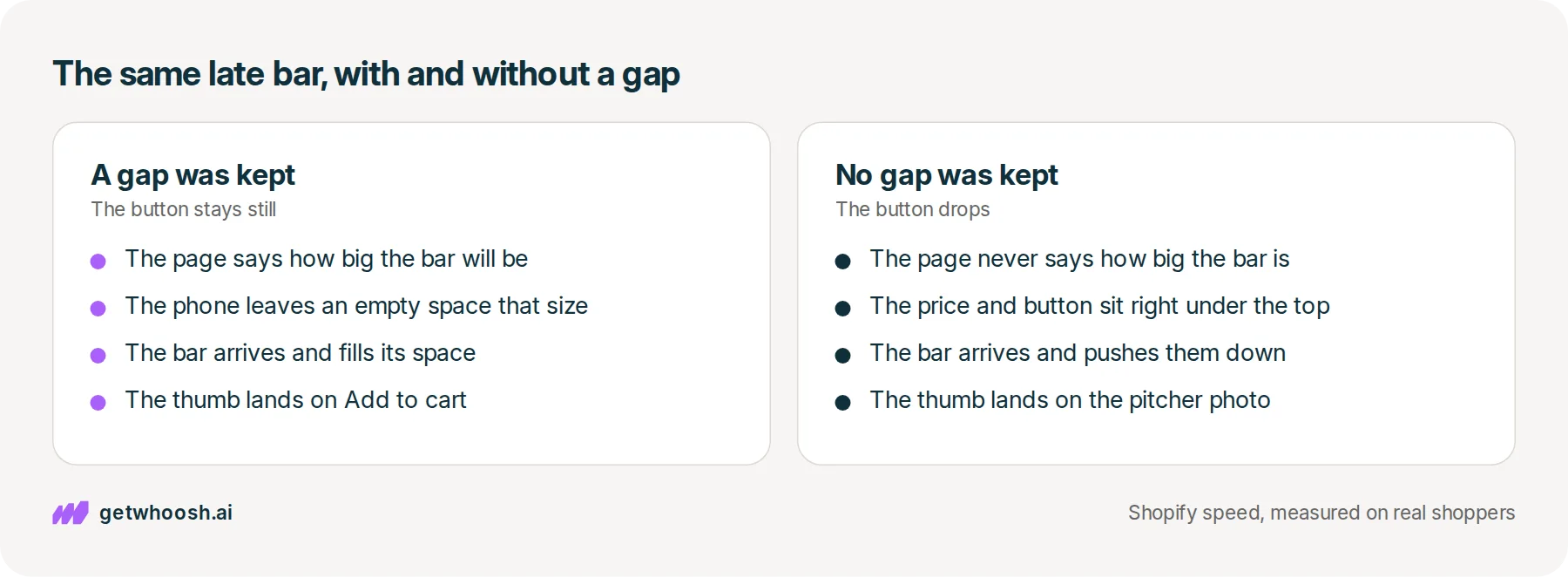
Google keeps score of those pushes. It adds up how much of the screen moved and how far, and calls the total cumulative layout shift, or CLS. Google’s guide to CLS puts a good score at 0.1 or less, and wants three out of four visits to come in at that or under, with phones and computers counted separately.
On a product page, two late things do most of the pushing. Shopify’s speed article for larger stores names them as images without dimensions and app widgets that push existing content aside. On the pitcher page, that is a photo the page never gave a size to, or a bar, popup, or reviews block an app adds after the page has started.
Check your store's real numbers
The free Whoosh audit measures your store on real shopper data, names the scripts in the way, and estimates what the delay is costing. No install, about a minute.
Free. No install. Results in about a minute.
Why you can leave the photo alone and look above the button
Here is the useful part. You probably do not need to touch the pitcher photo at all.
Shopify’s article on CLS says most themes already give product images their size by default. So on most stores the phone keeps the pitcher photo’s gap before the photo arrives, and the price stays where it is while the photo fills in. The check below shows you the one case where that is not true.
You can also ignore a move the shopper asked for. If they tap the large size and a note opens and nudges the button down, that is not this problem. Google’s guide leaves out moves that come within half a second of the shopper’s own tap, and Shopify’s article only warns against adding content above the page when it is not a direct response to a click or a tap.
That leaves the things nobody tapped for: the free-shipping bar, the signup popup, the review stars, the line that says only a few are left. Those are the usual Shopify CLS issues, and on a product page they are the same jump every time, not a long list of different faults.
Your other products usually use the same product page layout as the pitcher, which Shopify calls the product template, so one page tells you about the lot. You do not need to audit the whole catalogue.
If you want to avoid large layout shifts on Shopify, the rule fits in a line: leave a gap before the late thing arrives. Shopify’s article gives the two safe versions of that.
Keep a space the right size for the bar or the stock note from the start, even while it is empty, or let the notice sit on top of the page at the bottom of the screen, so nothing under it has to move.
Reload the pitcher page and watch the Add to cart button
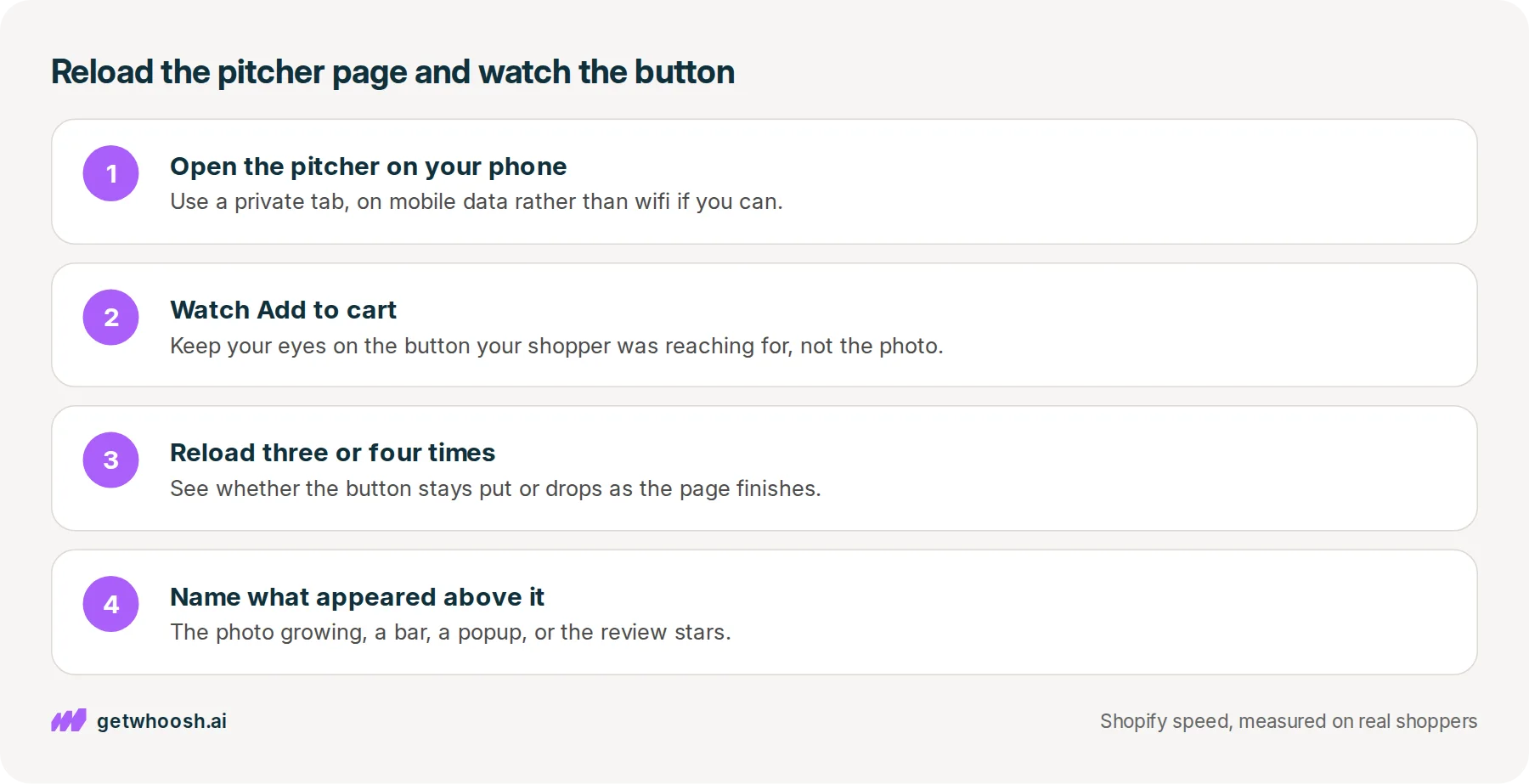
Here is the check. It is your phone and the live pitcher page, and nothing else.
-
On your phone, open the live pitcher page in a private tab. Use mobile data rather than wifi if you can, because a slower connection gives the late things more time to land after the button.
-
Keep your eyes on Add to cart, not on the photo. That is what your shopper was reaching for.
-
Reload the page three or four times and watch whether the button stays put or drops.
-
If it drops, look at what just appeared above it. That is the thing you are trying to name.
If the pitcher photo itself grows from nothing and shoves the price and the button down, the photo is missing its width and height. That is the size the phone needs to keep the gap.
On Dawn, Shopify’s free theme, that should not happen. Dawn already sends the product photo through image_tag, the bit of theme code that writes the photo onto the page, as Dawn’s product photo file shows, and Shopify’s notes on that filter say it adds a width and a height by default.
So when the photo does grow, it usually sits in a section somebody built by hand. Send that section to whoever made your theme, and ask for a width and height on the photo.
If a bar, a popup, or a reviews block appears above the pitcher and the button drops, that bar is the jump. Shopify’s 22 Apr 2026 article on CLS says most themes already size product images, and that banners, popups, and widgets injected above the page are what push it down.
Some of you are wondering whether the free-shipping bar has to go. It doesn’t. Find the app that adds it, and ask its support to keep a fixed space for it, or to show it on top of the page at the bottom of the screen instead of above the pitcher.
If that bar belongs to an app nobody uses any more, turn it off instead. Why a Shopify store gets slow shows where those app switches live in your theme, and turning one off does not uninstall the app.
If the button never moves but the pitcher photo is slow to show up, that is a different wait, about which copy of the photo the theme asks for, not about a missing gap.
So where does Whoosh fit? Not on this jump. Whoosh does not reserve the photo’s space and does not pin a banner in place.
It has not moved this score either. In our real-visit csv, the median store’s layout score at three out of four visits was about 0.02 with Whoosh on and about 0.02 with Whoosh off, both already well inside the good line, so a button that drops is not a reason to install it.
You can stop when you can name which thing moved. Say it as one sentence: the button dropped because the free-shipping bar arrived, or the review stars, or the photo. Once it has a name, you know who gets the message, the theme maker for the photo or the app’s support for the bar, and your next reload of the pitcher page tells you whether they fixed it.
Questions merchants ask
The button only jumps on my phone, not on my laptop. Does that still count?
Yes. Google scores phones and computers separately, so a jump that only happens on a phone still counts against your phone visits. That is why the check is on your phone, on mobile data, where the late bar has the most time to land after the button.
A size note opens when a shopper taps Large and pushes the button down. Is that a problem?
No. A move that follows the shopper's own tap is one they asked for, so it is not counted the way a late bar is. The jumps to chase are the ones nobody tapped for, like a bar or a popup arriving on its own.
Do I have to uninstall the reviews app to stop the stars pushing the button?
No. Keep the reviews. Ask the app's support to keep a fixed space for the block before it loads, so it fills a gap instead of making one. Then reload the pitcher page a few times and watch Add to cart again.
Is a free-shipping bar always going to make the page jump?
No. A bar that is part of the page from the start, or one that sits on top of the page at the bottom of the screen, does not push anything. The jump comes from a bar that slides in above the product after the page has already started showing.
Sources (5, checked 6 Nov 2026)
- 1 Shopify blog: CLS score and how Cumulative Layout Shift works (shopify.com, checked 6 Nov 2026)
- 2 Google's guide to Cumulative Layout Shift (web.dev, checked 6 Nov 2026)
- 3 Shopify Liquid reference: the image_tag filter (shopify.dev, checked 6 Nov 2026)
- 4 Dawn theme on GitHub: snippets/product-thumbnail.liquid (github.com, checked 6 Nov 2026)
- 5 Shopify Enterprise blog: Website speed optimization for Shopify stores (shopify.com, checked 6 Nov 2026)
The cream stoneware pitcher is an example, not a real store. The 0.02 figure is the median store in our real-visit csv, with Whoosh on and with it off, not a lift. The thresholds and causes come from Shopify's and Google's public pages, checked on 6 Nov 2026.
How posts are chosen, sourced, checked and corrected: our editorial policy.
Written by Edward Cameron Founder, Whoosh, Sydney, Australia
Edward Cameron is the founder of Whoosh, the Shopify speed app made in Sydney and on the Shopify App Store since August 2025. He writes here about what slows a Shopify product page and how to check it on your own store.
Keep reading
All posts
Apps & scripts 7 min read
What do the three web vitals grades on your Shopify Themes page mean?
Above your theme in the Shopify admin sit three grades: the photo, the tap, and the jump. On an oat linen table runner, here is what each one watches, why only the grade that is not Good matters, and what the price jumping down the screen means.

Apps & scripts 7 min read
Why is my Shopify store slow?
Shopify already runs fast servers and shrinks your photos. What a shopper often sees first is a chat bubble or popup you switched on in the theme, and the switch to check is in one list in the theme editor.

Apps & scripts 6 min read
Why Shopify image optimization still leaves photos slow
Shopify already makes small, light copies of the product photo you upload. The shopper still waits when the theme asks for the biggest copy, or makes the first photo queue behind the rest of the gallery.
