 Start Free Trial
What do the three web vitals grades on your Shopify Themes page mean?
Above your theme in the Shopify admin sit three grades: the photo, the tap, and the jump. On an oat linen table runner, here is what each one watches, why only the grade that is not Good matters, and what the price jumping down the screen means.

Edward Cameron · Founder, Whoosh
7 min read

In short
The three web vitals on your Shopify Themes page grade real shoppers' visits. LCP P75 (ms) says whether the main product photo showed up in time, INP P75 (ms) whether the page answered quickly after a tap, and Cumulative Layout Shift whether things on screen, like the price, stayed put. Each one reads Good, Moderate, or Poor. Leave the Good ones alone and watch only the one that is not.
- Shopify shows three web vitals grades on the Themes page, under Online Store: the photo (LCP P75), the tap (INP P75), and the jump (Cumulative Layout Shift).
- Each grade is built from real shoppers' visits and already reads Good, Moderate, or Poor, so you never compare the numbers with Google's lines yourself.
- Leave the Good grades alone. Click only the one that is not Good, then open your live product page and watch that one thing.
- The jump is the price sliding down when something like a review-star row pops in above it. The fix is room kept for that row, and the reviews stay.
Three grades on your Themes page, and one table runner
Let’s say you sell an oat linen table runner. You open your Shopify admin, go to Online Store, then Themes, and above your theme there is a small summary with three grades on it, each one saying Good, Moderate, or Poor.
Those three grades are the web vitals Shopify keeps for your store. Each answers a question about real shoppers’ visits that you can also check with your own eyes on the runner page.
Was the runner photo late to show up? Was the page slow to answer when a shopper tapped the longer length? Did the price jump down the screen while they were reading it? That is the whole list.
The good news is that you only have to look into the grade that is not Good. The Good ones you can leave alone.
What each grade watches, and how the Themes page works it out
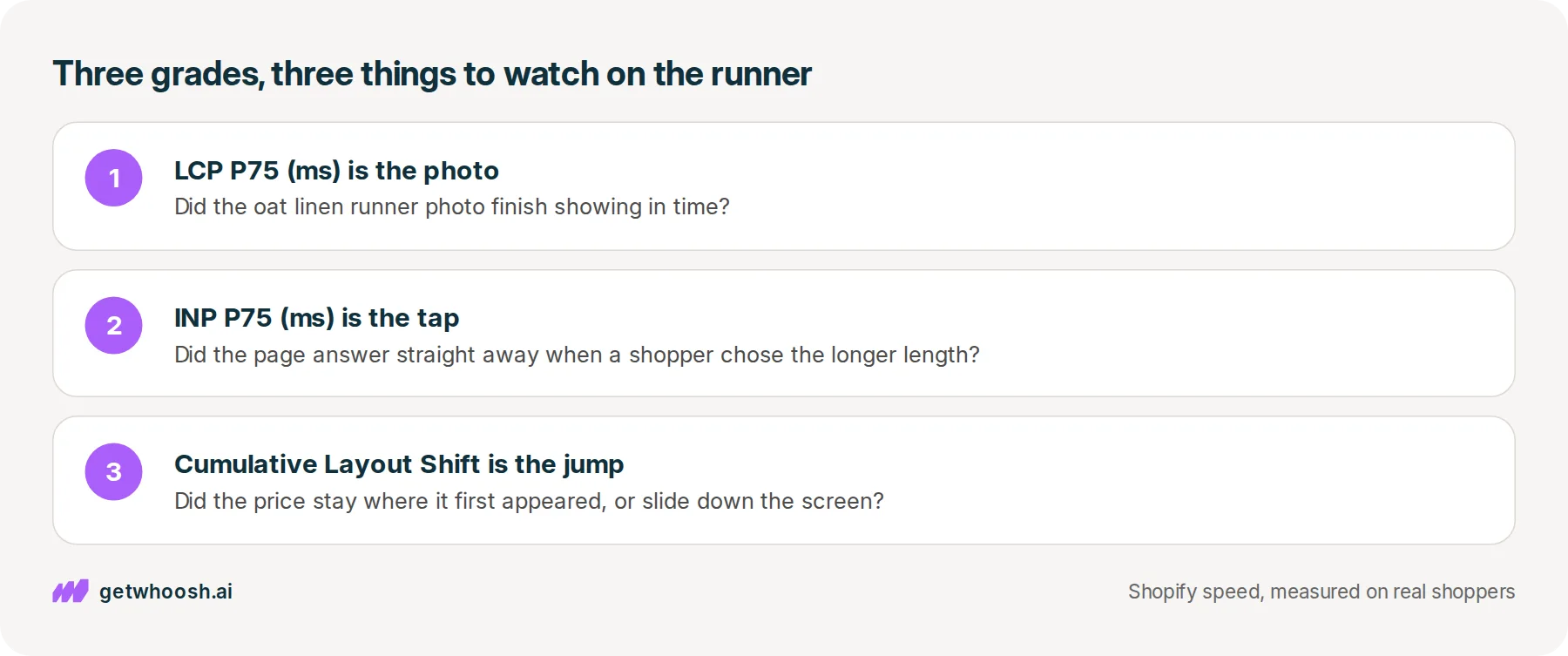
OK, so let’s match each label to the runner page. Shopify prints them in its own shorthand, and each one watches one thing a shopper would notice.
The first label, LCP P75 (ms), is the photo. It times how long the biggest thing on the screen takes to finish showing, and Shopify’s notes on theme performance say that is usually the product image, so on your page it is the runner photo. The full name is Largest Contentful Paint.
The second label, INP P75 (ms), is the tap. A shopper’s table is long, so they tap the longer length, and this times how long the page takes to show it heard them. That one is called Interaction to Next Paint.
The third label, Cumulative Layout Shift, is the jump. It adds up how much the things on the screen moved by themselves while the page loaded, like the price sliding down just as the shopper went to read it.
Where do the grades come from? Shopify’s notes on testing say the admin reports LCP, INP, and CLS from real visitors to your store, so each grade is made of shoppers on their own phones and their own internet.
Those three are what Google calls Core Web Vitals, and Google’s lines decide what counts as good. Google’s Web Vitals page puts good at the main photo showing within 2.5 seconds of the page starting to load, a tap answered in 200 milliseconds or less, and a jump score of 0.1 or less (the next section says what that score is), all read at the 75th percentile of visits.
That last part is what P75 means in the labels. Line up every visit to the store, and the grade is read at the point where three out of four visits did at least that well.
Google sets the lines, and Shopify times your shoppers against them. You do not have to do the sum yourself, because the Themes page compares each number with its line and prints Good, Moderate, or Poor, as Shopify’s guide to the reports describes.
Check your store's real numbers
The free Whoosh audit measures your store on real shopper data, names the scripts in the way, and estimates what the delay is costing. No install, about a minute.
Free. No install. Results in about a minute.
Why only the grade that is not Good is worth your time
Here is the useful part. A Good grade means three out of four visits already clear Google’s line on that measure, so there is nothing on the runner page to fix for it today.
The grade that is not Good is different, because it tells you which one thing to watch. Suppose yours is Cumulative Layout Shift, the jump, which is also the one you can see most clearly with your own eyes.
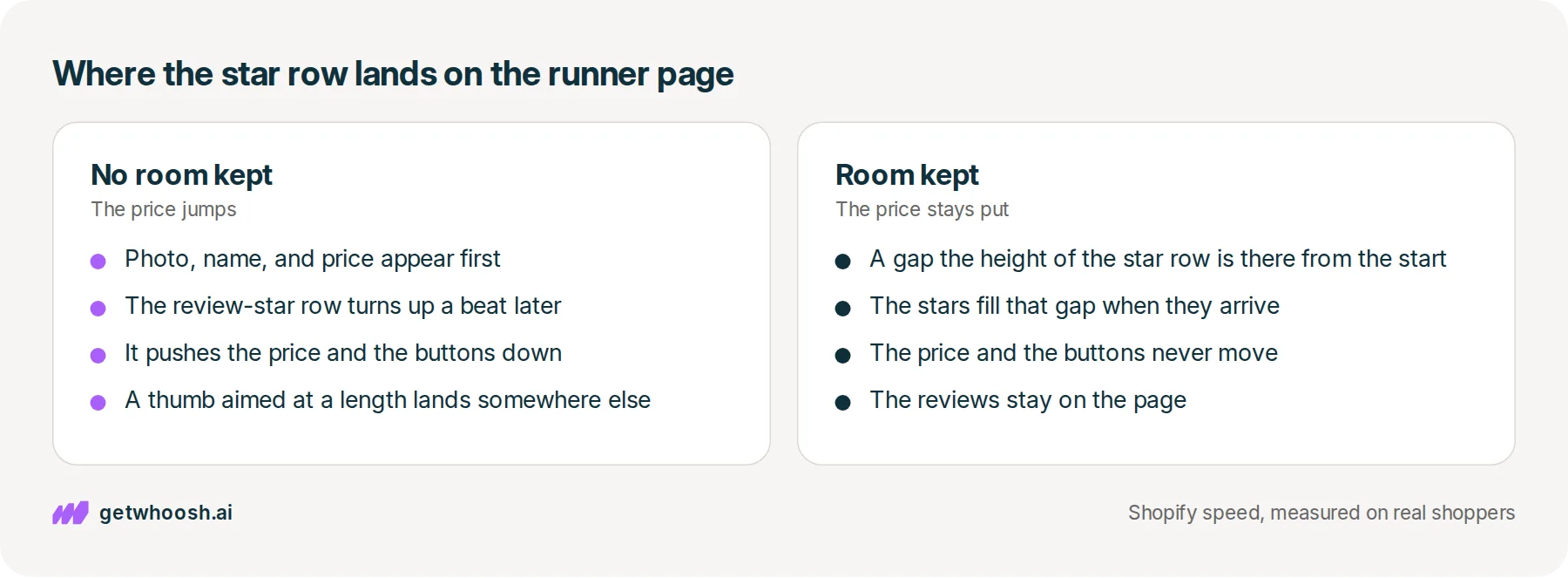
A shopper opens the runner page on their phone. The photo, the name, and the price appear, and they start reading. A beat later, a row of review stars pops in above the price, and the price, the length buttons, and Add to cart all slide down the screen.
If their thumb was on its way to the longer length, it lands on something else. Nothing is broken, but the page moved under them, and that movement is what the third grade counts.
Google’s page on layout shift calls each of those moves a layout shift, which is something on screen changing place from one moment to the next. It says they usually happen when something loads late or gets added above what is already showing, and that is the star row exactly.
Shopify’s notes on theme performance name the same kind of thing as a common cause: content an app adds to the page, next to pictures with no size set and fonts that swap in late. Your reviews app is that kind of content.
This grade is not counted in seconds. It is a score for how much of the screen moved and how far, written CLS for short, and Google’s page on layout shift puts good at 0.1 or less.
One detail changes how you watch. The same page leaves out a move that comes straight after the shopper taps, like a size guide opening, because they asked for it. So when you check, open the page and keep your thumb off the screen.
I know what you’re thinking. The stars help sell the runner, so do you have to take the reviews off? You don’t. The jump comes from the row arriving with nowhere to go, not from the stars being there.
Shopify’s notes on theme performance say to reserve space for content an app adds. In plain terms, the page keeps a gap the height of the star row from the very start, and the stars fill that gap when they arrive. The reviews stay, and the price stops moving.
Click the grade that is not Good, then watch the runner
Here are the clicks, in order. You need your Shopify admin and your phone.
-
In your Shopify admin, go to Online Store, then Themes, the screen Shopify’s guide to the reports points to.
-
Read the three labels above your theme: LCP P75 (ms), INP P75 (ms), and Cumulative Layout Shift. If all three say Good, you can stop here.
-
Click the one that does not say Good. It opens a report of that grade over time, so you can see whether it has been like this for a while or only lately.
-
On your phone, open the live runner page from a normal link in a private tab, so it loads the way it would for a new shopper, and watch the thing that label names.
If the label was Cumulative Layout Shift, keep your thumb off the screen and watch the price from the moment the page appears. If the star row pops in above it and the price drops, you have found your jump.
Whoosh does not hold that space for you, so this one goes to whoever built the row. Message the reviews app’s developer, say the star row on your product page pushes the price down as it loads, and ask how to keep its height from the start.
If your theme developer added the row instead, ask them the same question.
If the label was INP P75 (ms), tap the longer length and see whether the page answers straight away, and the post on the wait after a tap covers what to do when it hangs.
If the label was LCP P75 (ms), watch whether the runner photo is the last thing on the page to appear, and the post on reading your real shoppers’ photo time shows the number behind that grade.
That photo grade is the one where Whoosh has a job. Your reviews, chat, and popup apps each put a small program on the page, the third-party scripts, and Smart App Loading sequences them so they do not race the product image, while every app still loads once the photo is up.
Smart App Loading is US$99 a month after a 7-day free trial, as Whoosh’s pricing page lists it, and it installs from Whoosh’s listing on the Shopify App Store.
Back to the jump, because that is the one you can check today. Once the developer has kept room for the stars, open the runner page again in a private tab, keep your thumb off the screen, and make sure the price stays exactly where it first appeared.
If it still moves, look for the next box that turns up late above it, like a shipping banner or a badge, and ask that app for the same thing. Then give the grade time to catch up, because it needs new shoppers’ visits to see the steady price.
Questions merchants ask
Are these grades for one product or for my whole store?
The summary on the Themes page covers your store, built from real visits across its pages. The runner page is where you go to see what a grade is pointing at, because a product page is where a shopper waits for the photo, taps a length, and reads the price.
The price does not jump on my phone, but the grade is still not Good. Why?
Your phone is one visit, often on fast wifi, and the grade comes from many shoppers' visits. Open the page in a private tab so it loads like a first visit, and watch from the moment you tap the link. If the price still stays put, check a collection page or your homepage the same way, because the grade covers more than one page.
Do I have to remove my reviews app to stop the price jumping?
No. The stars earn their place under a runner. The jump comes from the row arriving with no room kept for it, so the fix is keeping that room, not removing the reviews. Ask the reviews app's developer how to give the star row a fixed height on product pages.
Is a Moderate grade worth acting on?
Treat it as the one to check, the same way you would treat Poor. Moderate means the visits at the three out of four mark missed Google's good line, but not by as much as Poor. The check on the runner page is the same, and it is less urgent than Poor.
Sources (6, checked 8 Nov 2026)
- 1 Shopify developer docs on theme performance (shopify.dev, checked 8 Nov 2026)
- 2 Shopify developer docs on testing for performance (shopify.dev, checked 8 Nov 2026)
- 3 Google's Web Vitals page on web.dev (web.dev, checked 8 Nov 2026)
- 4 Google's Cumulative Layout Shift page on web.dev (web.dev, checked 8 Nov 2026)
- 5 Whoosh pricing (getwhoosh.ai, checked 8 Nov 2026)
- 6 Whoosh on the Shopify App Store (apps.shopify.com, checked 8 Nov 2026)
The good lines come from Google's web.dev pages on Web Vitals and Cumulative Layout Shift, and what each grade watches comes from Shopify's developer notes on theme performance and testing, checked on 8 Nov 2026. The Themes page clicks come from Shopify's help page on web performance reports. The oat linen table runner is an example, not a real store.
How posts are chosen, sourced, checked and corrected: our editorial policy.
Written by Edward Cameron Founder, Whoosh, Sydney, Australia
Edward Cameron is the founder of Whoosh, the Shopify speed app made in Sydney and on the Shopify App Store since August 2025. He writes here about what slows a Shopify product page and how to check it on your own store.
Keep reading
All posts
Apps & scripts 7 min read
Why does the Add to cart button jump on my Shopify store?
A shopper reaches for Add to cart on your cream stoneware pitcher, and the button drops because a bar arrived with no gap kept for it. Here is why that happens, what you can leave alone, and the reload that tells you which thing moved.

Core Web Vitals 5 min read
Stop chasing your Shopify speed score. Measure what Google measures.
Shopify speed score has meant a Lighthouse average, and it now means three figures from real visitors. They are not the same number, and only one of them is the target.

Apps & scripts 7 min read
Why your Shopify speed score and your real shoppers disagree
You paste your tote page into PageSpeed and get a red circle. That circle grades one pretend visit. Your real shoppers' wait for the tote photo is a different number, in the same report and in your Shopify admin, and it is the one to trust.
