 Start Free Trial
 Why your Shopify speed score and your real shoppers disagree
You paste your tote page into PageSpeed and get a red circle. That circle grades one pretend visit. Your real shoppers' wait for the tote photo is a different number, in the same report and in your Shopify admin, and it is the one to trust.

Edward Cameron · Founder, Whoosh
7 min read

In short
A Shopify speed score is the big 0 to 100 grade from a pretend visit: Google loads your page once, on one simulated phone over one network, and scores how it came together. Real users are your actual shoppers, and Shopify records how long the main photo took to appear on their phones. The two can disagree. When they do, trust the real shoppers, and use the grade as a clue.
- The big Performance number in PageSpeed Insights grades one pretend visit to your product page, on one simulated phone and one network. Google calls it lab data, and the tool behind it is Lighthouse.
- Your real shoppers' wait for the product photo is a separate number. It sits in another part of the PageSpeed report, and in the Largest Contentful Paint reports in your Shopify admin.
- A green circle does not mean shoppers saw the photo sooner, and a red one does not mean they waited. When the two disagree, trust the shoppers.
- If real shoppers on phones see the photo in time, you can stop, whatever colour the circle is. If not, look at what arrives before the photo.
You paste the tote page into PageSpeed and get a red number
You open the product page for your sand canvas tote, copy its address, and paste it into PageSpeed Insights, Google’s free checker for a web page. A moment later it shows one big number out of 100, labelled Performance, inside a circle that is orange or red.
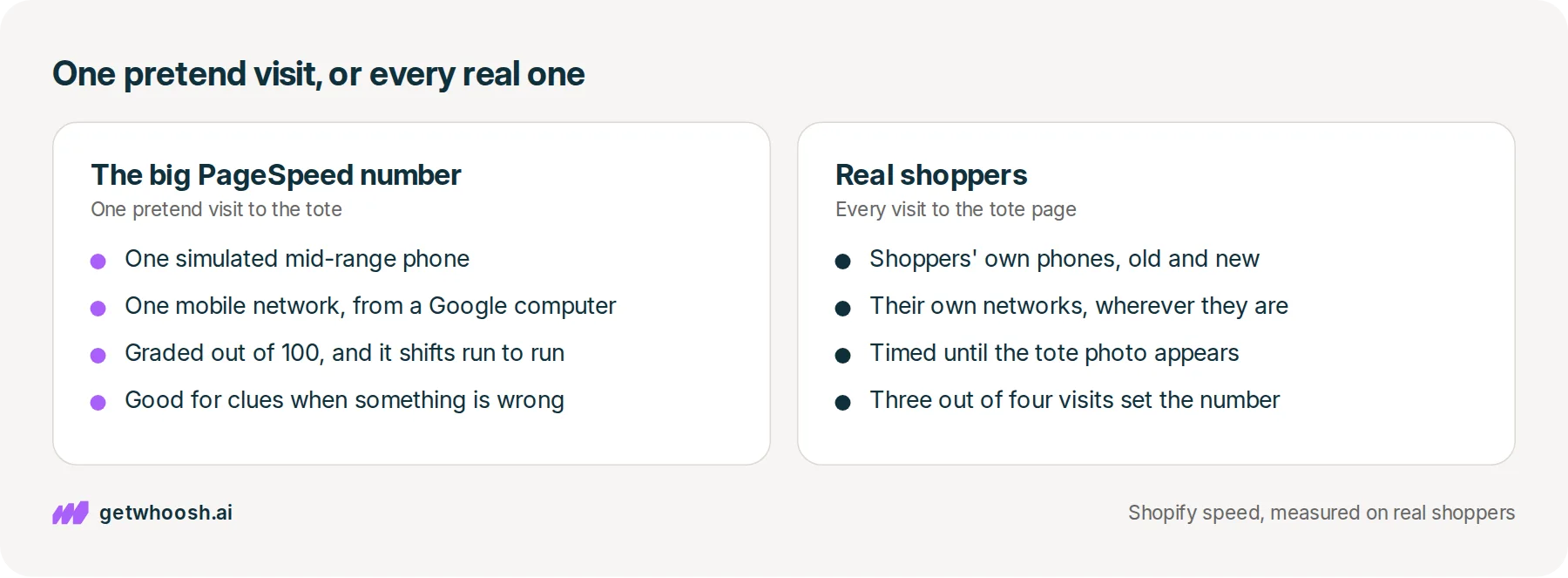
That number is the same kind of grade Shopify’s old speed score was built from. It grades one pretend visit to the tote page, made by a Google computer, not by any of your shoppers.
Your shoppers have a number of their own: how long they waited for the tote photo to appear on their phone. It sits in a separate part of that same report, and in your Shopify admin. The two can disagree, and when they do, trust the shoppers.
So the red circle is a clue about the tote page. It is not the verdict on it.
What the big number grades, and what Shopify counts instead
OK, so let’s start with what Google did with your tote page. It loaded it once, on a pretend mid-range phone over a mobile connection, and timed how the page came together on screen.
Google’s page on PageSpeed Insights describes that as a simulated load on a single device with a fixed set of network conditions. It turns those timings into the grade, and 90 or above shows up green.
That pretend visit is what people call a lab test, and the tool that runs it is called Lighthouse. So when someone compares a Lighthouse score with real user speed on Shopify, they are making the same comparison you are making with the tote.
Shopify’s own speed score used to be built the same way. Shopify’s article on the speed score says it was a weighted average of Lighthouse scores for your homepage, your busiest product page, and your busiest collection page, and that Lighthouse only measures a snapshot in a simulated lab setting.
That same article says the Web Performance dashboard replaced the single score. The dashboard counts something different.
Every time someone opens the tote page in Chrome, Edge, Samsung Internet, or Firefox, Shopify notes when the biggest thing on their screen showed up. On a product page, that is usually the tote photo.
Shopify’s help page on web performance says each of these scores comes from real visitors, not simulated tests, and that good means the main content is on screen within 2.5 seconds.
That wait has a name, Largest Contentful Paint, or LCP, and numbers from real visits like these are what people call field data. Shopify reads it at the 75th percentile, which means three out of four visits to the tote saw the photo at least that fast.
PageSpeed has a real-shopper part too, and it is easy to miss next to the big circle. Google’s page on PageSpeed Insights says it covers Chrome users who agreed to share their data over the previous 28 days.
If the tote has too few visits, that part falls back to the whole store or shows nothing. Shopify counts more browsers than Chrome, which is why Shopify’s help page warns that its numbers can differ from PageSpeed’s. Same tote, a slightly different crowd of visitors.
Check your store's real numbers
The free Whoosh audit measures your store on real shopper data, names the scripts in the way, and estimates what the delay is costing. No install, about a minute.
Free. No install. Results in about a minute.
Why a green score does not mean the tote arrived sooner
Here’s the catch. The grade and the photo time come from two different kinds of visit, so one can move while the other stays put.
Google’s page on PageSpeed Insights says it plainly: good lab data does not necessarily mean real shoppers’ experiences will also be good. It runs the other way too.
The pretend phone is one mid-range model on one mobile network, and your shoppers are on whatever they own, wherever they are. A red circle can sit on a tote page that real shoppers see quickly, and a green one can sit on a page where they wait.
The circle grades one visit Google made up. The photo time is every visit your shoppers made.
I know what you’re thinking. Google made PageSpeed, so surely Google ranks the tote on that circle. Shopify’s article on the speed score says Google ranks on the Chrome visitors’ data, the real-shopper part of that same report, not on the circle. Shopify’s number counts Firefox and more browsers as well, so when those two real-shopper numbers differ, trust the photo time in your admin.
That gives you permission to ignore a few things. The circle changing when you run the tote twice is normal, because Google’s page says the network and the test computer vary from run to run.
A red circle on a tote page where real shoppers already get the photo in time is not a fire. And chasing 90 for its own sake is the trap Shopify’s article warns about, where the score goes up and the page gets no better for shoppers.
What you still have to get right is the photo for real shoppers. Keep the lab report anyway, because Google says lab data is the useful kind for finding a problem, and the fixes listed under the circle are where you look if the real photo is late.
Read both numbers on the tote page, then decide
Here is the check, in the order you would click. You need the tote’s address, PageSpeed, and your Shopify admin.
-
Open the live tote page from a normal link, not the theme editor, and copy the address from the browser bar.
-
Paste it into PageSpeed Insights, leave it on Mobile, and note the big Performance number. Do not act on it yet.
-
In the same report, find the part about your real users and look for Largest Contentful Paint. If it says there is not enough data, that is normal for one product on a smaller store, so go straight to Shopify.
-
In your Shopify admin, go to Analytics, then Reports, search for contentful, and open Largest Contentful Paint: Page URL, as Shopify’s guide to the reports describes. Filter the device type to mobile and find the tote’s address in the list.
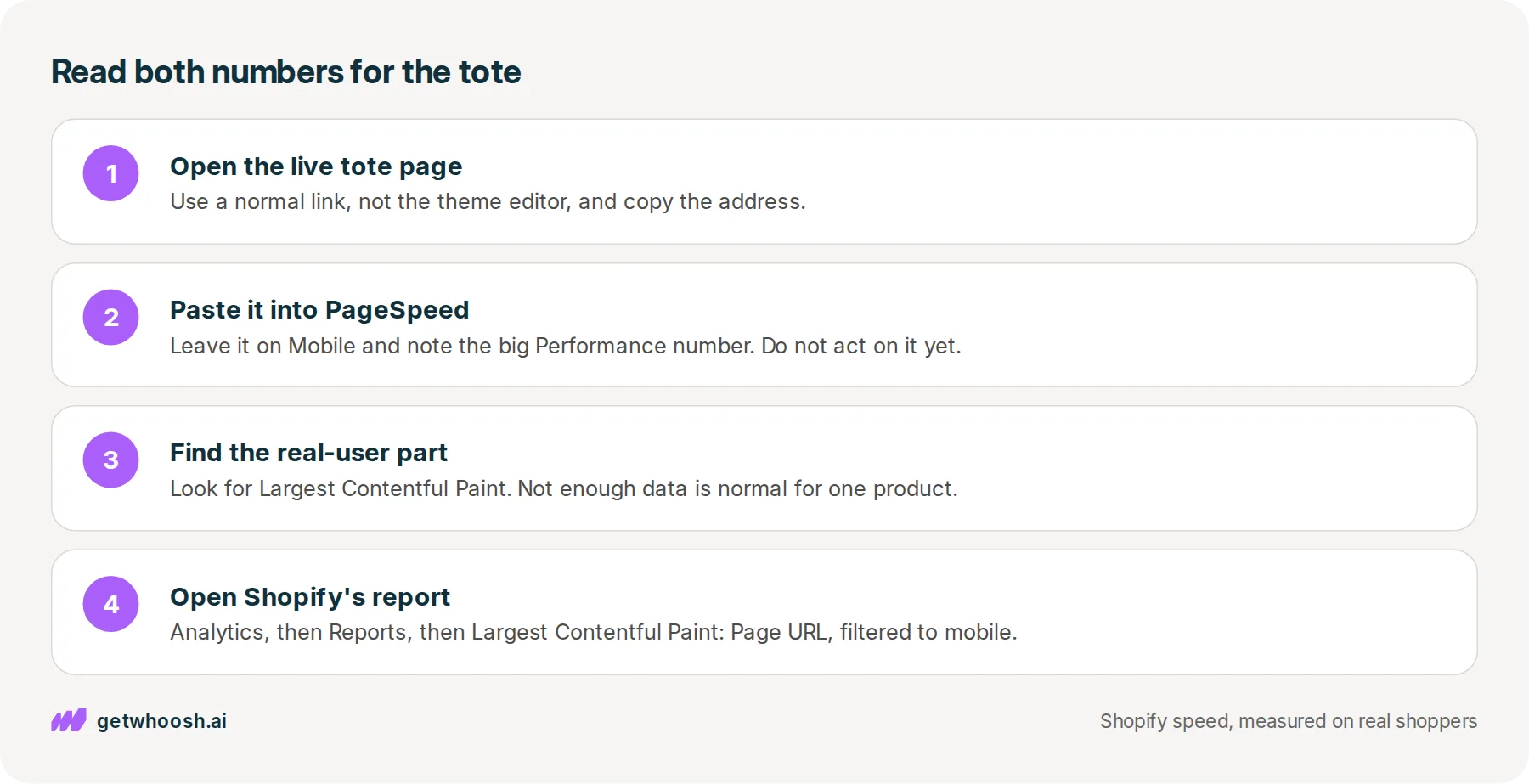
Now you have both numbers for the tote: the pretend visit, and what your shoppers waited for.
So does Whoosh turn the red circle green? A little, and that is the wrong reason to install it.
On the stores we measure, the product page on a phone had a median pretend-visit score of 56 with Whoosh on and 43 with it off. Those are two different middles, though, and when you line each store up against itself, the typical store’s own gap is 3.5 points.
The homepage on a computer is the same trap, where 73.5 against 61 looks like a 12-point jump while the typical store’s own gap is 3.
The photo barely moved at all. In our real-visit csv, the median store’s photo time at three out of four visits was about 1.87 seconds with Whoosh on and about 1.88 seconds off, and both were already inside the good band.
So the lab number moved a little, and the photo time for real shoppers barely did. Do not install Whoosh to turn a red PageSpeed number green.
Whoosh does have a job when the tote photo is late for real shoppers because a chat, review, or popup app starts first. Smart App Loading sequences those other apps so they do not race the tote photo, and they still load once the photo is up.
Smart App Loading is US$99 a month on the Shopify App Store, with a 7-day free trial.
You can stop once Shopify says real shoppers on phones see the tote within 2.5 seconds, the good line on Shopify’s help page, whatever colour the circle is.
If the photo is late for them, the next suspect is what holds it up. There are two places to look: an app nobody uses any more whose program still arrives first, which is why a Shopify store gets slow, or a photo file bigger than the phone needs, which is the copy of the photo your theme asks for.
Whatever you change, give it a week, then read both numbers on the tote page again. Shopify’s reports can run up to 36 hours behind, so set the date range to the days since your change and let the shoppers’ number catch up with the circle.
Questions merchants ask
Why does my PageSpeed score change every time I run it?
Each run is a fresh pretend visit, and Google says the network and the test computer vary between runs. Two runs on the tote page a minute apart can land on different numbers with nothing changed on your store. Read the real shoppers' photo time instead, because it comes from many visits rather than one.
PageSpeed says there is not enough real-user data for my product. What now?
That is normal for a single product on a smaller store. PageSpeed only shows real-user numbers once enough Chrome visitors have shared them, and otherwise it falls back to the whole store or shows nothing. Shopify's own reports count more browsers, so check the product in Analytics, then Reports. If traffic is low, a weekly or monthly view is steadier.
Should I pay someone to get my score to 90?
Not for the circle alone. Shopify's article on the speed score warns that some services raise the score with methods that do not make the page better for shoppers, and sometimes make it worse. Ask what will change for real shoppers, and check their photo time in your admin before and after.
Should I look at the phone number or the computer number?
Look at the one most of your shoppers use. On the Themes page under Online Store, the summary includes sessions split by device type, so you can see which is bigger. Read the photo time for that device first, then the other.
Sources (5, checked 17 Oct 2026)
- 1 Shopify Enterprise blog: What is a good Shopify speed score (shopify.com, checked 17 Oct 2026)
- 2 Shopify Help Center: Overview of web performance (help.shopify.com, checked 17 Oct 2026)
- 3 Shopify Help Center: Web performance reports (help.shopify.com, checked 17 Oct 2026)
- 4 Google for Developers: About PageSpeed Insights (developers.google.com, checked 17 Oct 2026)
- 5 Whoosh on the Shopify App Store (apps.shopify.com, checked 17 Oct 2026)
How PageSpeed Insights and Shopify's web performance reports work comes from Google's and Shopify's own pages, checked on 17 Oct 2026, and the scores and photo times with Whoosh on and off are the typical store among the stores we measure. The sand canvas tote is an example, not a real store.
How posts are chosen, sourced, checked and corrected: our editorial policy.
Written by Edward Cameron Founder, Whoosh, Sydney, Australia
Edward Cameron is the founder of Whoosh, the Shopify speed app made in Sydney and on the Shopify App Store since August 2025. He writes here about what slows a Shopify product page and how to check it on your own store.
Keep reading
All posts
Apps & scripts 7 min read
Why is Shopify mobile page speed slower than your laptop?
Your camel suede loafers load fine on the laptop in the back office, and a shopper in a waiting room waits for them on their phone. The phone gets the same page with less to work with. Here is how to tell whether it has a problem of its own, and what to check first.

Apps & scripts 7 min read
Does page speed affect SEO on Shopify?
A shopper types leather slippers into Google on their phone. Google shows the page that matches those words best, even when it is slow, and speed only counts between pages that match equally well. Here is the phone check that tells you which one to fix first.

Apps & scripts 7 min read
Does site speed affect conversion rate?
A visit where the product page finishes loading fast turns into an order about twice as often as a slow one, on the stores we measure. Turning Whoosh on put more visits in the fast group and did not raise the rate.
