 Start Free Trial
How to remove unused apps from your Shopify store
A shopper opens a dark green bottle of cold-pressed olive oil, and a countdown from a sale that already ended sits above it. Uninstall the app from Settings, then Apps, then open the bottle page on your phone to make sure the bar went with it.

Edward Cameron · Founder, Whoosh
6 min read

In short
In your Shopify admin, go to Settings, then Apps, open the menu beside the app you no longer use, and click Uninstall, then Uninstall again. Export anything you still need first, and cancel any bill the app sends outside Shopify. Then open the product page on your phone. Blocks the app added to the theme go with it, but code pasted into theme files can stay, so if its bar is still there, ask the developer.
- The spring sale ended, but the countdown app is still installed, so its bar still sits above the olive oil bottle on every shopper's phone.
- Before you click, export what you need. Uninstalling stops future Shopify charges, the current cycle might still be billed, and a bill sent outside Shopify stays until you cancel it with the developer.
- Settings, then Apps, the menu beside the countdown app, Uninstall, then Uninstall again. The reason menu is optional.
- Open the live olive oil page on your phone. Blocks the app added are removed, but code it pasted into theme files can stay, so if the bar is still there, ask the developer.
The spring countdown is still on the olive oil bottle
A shopper opens your cold-pressed olive oil on their phone. They came for the bottle: the dark green glass, the label, the colour of the oil behind it. Across the top of that page sits a countdown bar from your spring sale.
The sale ended. The countdown app is still installed, so the bar is still there, and it’s the first thing every shopper sees above the bottle.
You take the countdown app out from Settings, then Apps, in your Shopify admin. Then you open the olive oil page on your phone and make sure the bar went with it.
Hold onto one idea while you do it. Uninstalling takes the app out of your store, but it doesn’t always take out everything the app put on the page. That’s why the job ends with a look at the bottle, not with the click.
What Uninstall takes with it, and the clicks in Settings > Apps
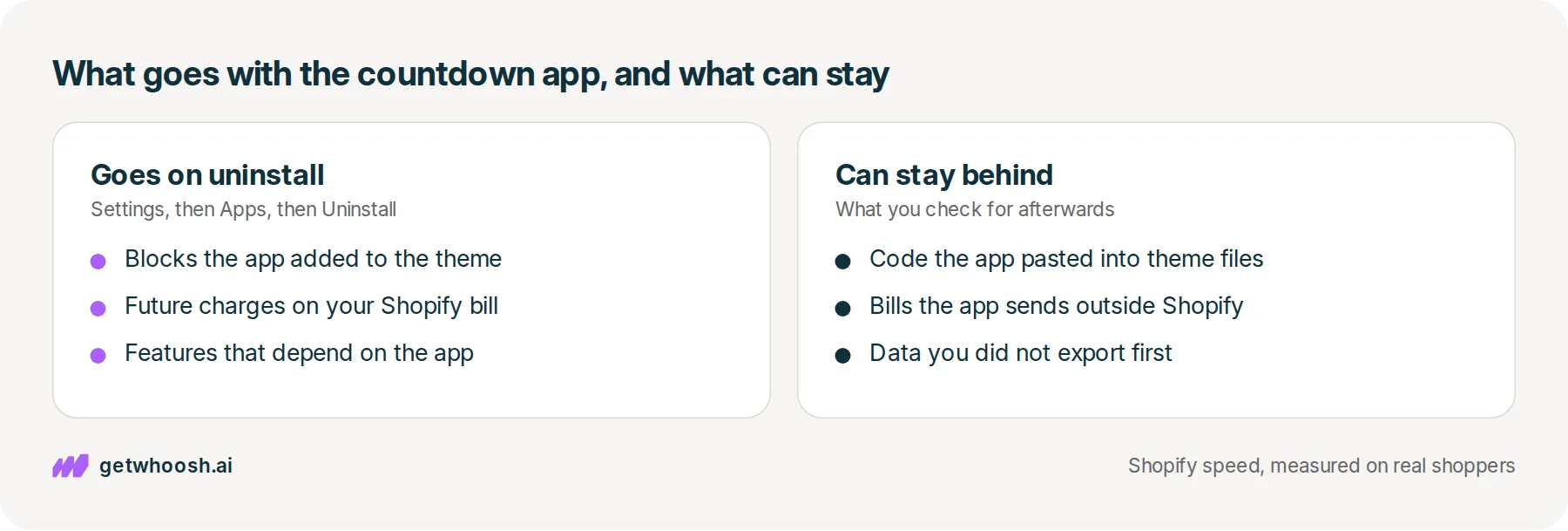
Uninstalling is how you tell Shopify you’re finished with an app. Shopify’s uninstall page says anything that depends on the app stops working once it’s gone, so the countdown stops, and so does anything else that app was quietly doing for you.
So before you click, give it a minute. The same page says some apps keep data you can’t recover afterwards, so export anything you still need from the countdown app first.
Then the money. If the app bills you through Shopify, uninstalling cancels its future charges, though you might still be billed for the current cycle. If you want a refund, ask the developer before you uninstall, not after.
If it bills you outside Shopify, the uninstall page says uninstalling in the admin doesn’t cancel that bill at all. You cancel that one with the developer.
One more, for apps that hold stock. If an app keeps inventory at its own location, Shopify says you have to move or delete that stock as part of the uninstall. And if you’re unsure whether your app needs extra steps, Shopify points you to Settings, then Apps, then Get support, while the app is still on the list.
I know what you’re thinking. You’ll want a countdown again for the next sale.
That’s fine. Shopify says you can reinstall most apps, though your old settings or data might not come back, so jot down the bar’s wording and colours before it goes.
Here are the clicks, on a computer:
-
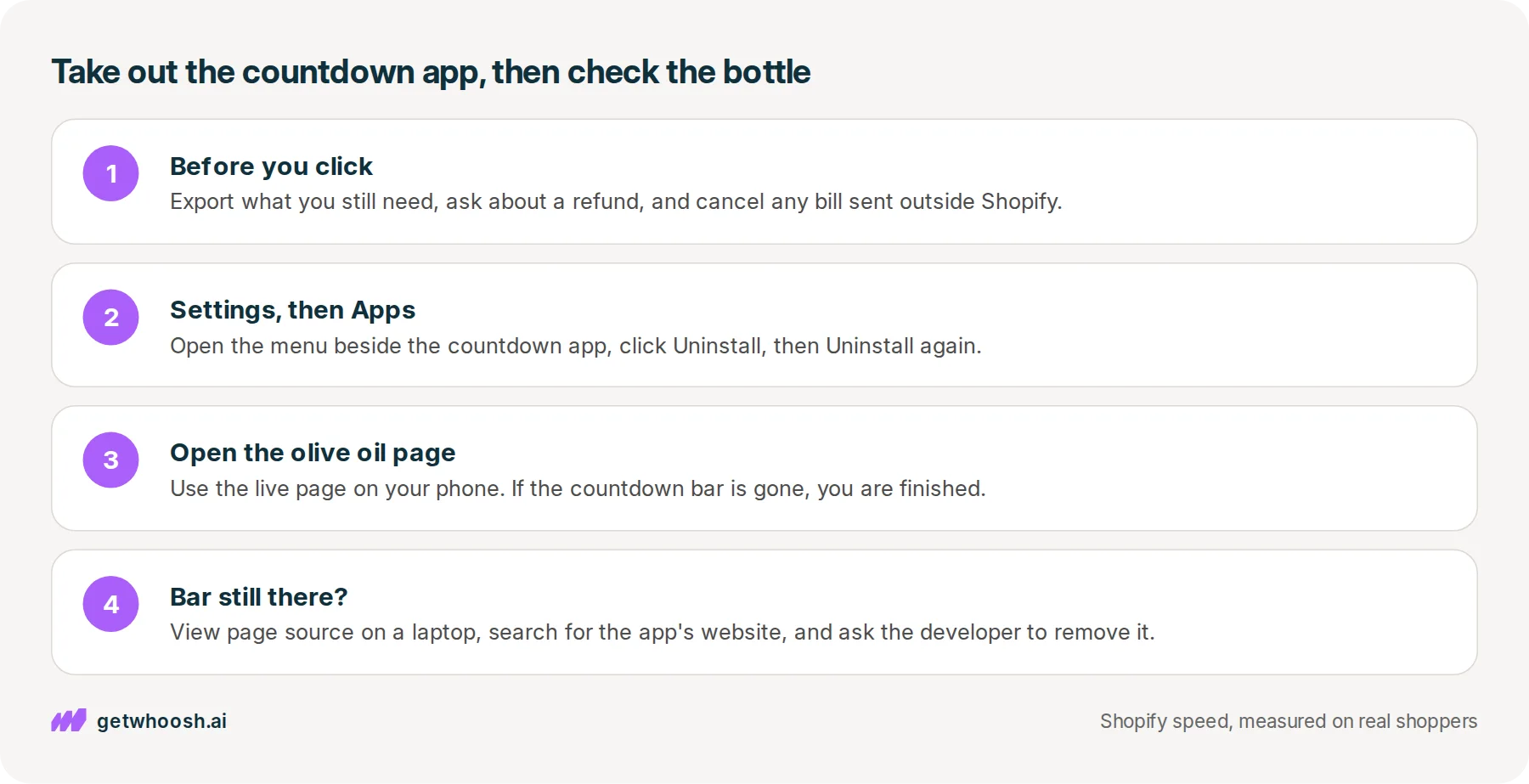
In your Shopify admin, go to Settings, then Apps. That’s the list of every app installed on the store.
-
Find the countdown app, click the menu beside it, and choose Uninstall.
-
Shopify asks why you’re leaving, in a menu marked optional. Pick a reason or skip it, then click Uninstall again.
One thing this isn’t. Turning the countdown’s switch off in the theme editor hides it and leaves the app installed, which is the right click for an app you’re keeping, and the post on why a Shopify store is slow walks that one.
Check your store's real numbers
The free Whoosh audit measures your store on real shopper data, names the scripts in the way, and estimates what the delay is costing. No install, about a minute.
Free. No install. Results in about a minute.
Why a finished sale’s app should come out
Is one bar worth the fuss? I think so, and the first reason is the shopper’s. A countdown tells them to hurry because a deal is about to end. When the deal has already ended, the bar is promising something your store no longer offers, right above the bottle they came to look at.
The second reason is the phone’s. The bar doesn’t arrive by itself. A small program from the countdown company draws it, which is the piece people call a script, and the phone has to fetch and run that program while it’s also showing the bottle photo and the label.
Shopify’s enterprise guide to page speed puts it plainly: apps that add programs to the storefront create more work for the browser. The bar is what the shopper sees. The program behind it is what the phone has to do.
The third reason is the bill. A paid app you’ve stopped using keeps charging until it’s uninstalled, and the last section covered which bills stop with the click and which don’t.
The same Shopify guide says to remove apps you no longer use, then check for leftover code with the app developer. That’s this whole job in one line from Shopify, and the second half is why the job ends on the bottle page.
Check the olive oil page, then sort the apps you keep
Open the live olive oil page on your phone, the way a shopper would, not the preview in the theme editor. If the countdown bar is gone and the bottle sits at the top of the page, you’re finished with this app.
Shopify’s guidance for app developers says that when a store uninstalls an app, the blocks that app added to the theme are removed automatically and entirely. Blocks are the pieces you can see, move, and delete in the theme editor. If the countdown bar was one of those, it went with the app.
But here’s the catch. The uninstall page also says some apps add code to your theme that isn’t removed when you uninstall. Shopify’s guide to removing third-party scripts says many apps write their code straight into theme files when they’re installed, and taking the app out of the admin doesn’t always take that code out.
If the bar is still on the bottle, that’s what happened. The app is gone from your list, and its code stayed in your theme.
To confirm it, open the same olive oil page on a laptop. Right-click an empty spot and choose View page source, which shows the code behind the page.
Search that code (Ctrl+F, or Cmd+F on a Mac) for the countdown company’s name or the website address on its App Store listing. The audit guide gives this exact check: if the address still turns up, its program is still loading.
Then ask the developer to take it out. They wrote those lines and know which ones are theirs, which beats you deleting code you didn’t write. With the app off your Apps list, its page on the Shopify App Store is how you reach them.
Now, the apps you’re keeping. The reviews under the bottle and the email signup still earn their place, and they still put programs on the same page as the oil. If your email app is Klaviyo, keep it, and the Klaviyo post shows what its popup puts on a product page.
Those kept programs are the ones Whoosh works on. Smart App Loading sequences them so the reviews and the email form still load, just after the bottle photo instead of racing it.
It works alongside those apps without removing any of them. It doesn’t uninstall apps or clean up code a removed app left behind, so that part stays with the developer.
Whoosh’s pricing page lists Smart App Loading at US$99 a month with a 7-day free trial, and you add it from the Shopify App Store.
Last, a habit for the next sale. When you install a countdown for it, write the end date beside the app’s name, and on that day go back to Settings, then Apps, uninstall it, and open the olive oil bottle on your phone afterwards.
Questions merchants ask
Will uninstalling the countdown app refund this month?
Not by itself. Shopify's help page says uninstalling a paid app cancels future recurring charges, and you might still be billed for the current billing cycle. If you want a refund, contact the app developer before you uninstall, while the app is still on your Apps list.
Can I reinstall the countdown app for my next sale?
Usually, yes. Shopify says you can reinstall most apps after uninstalling them, but your previous settings or data might not be restored. Write down the bar's wording, colours, and anything else you set up, so you can put it back the way it was.
Should I delete the app's leftover code from my theme myself?
Ask the developer first. They know which lines in your theme are theirs, and Shopify's own advice is to check for leftover code with the app developer. Deleting code you did not write can break a part of the page you meant to keep.
Does an app I no longer use still slow the page?
If it still puts a program on the storefront, it adds work. Shopify's enterprise page speed guide says apps that add storefront scripts create more work for the browser. An app that only works inside your admin may add nothing to the page, and it can still bill you, so it is worth uninstalling too.
Sources (5, checked 3 Nov 2026)
- 1 Shopify developer guide: UX for theme app extensions (shopify.dev, checked 3 Nov 2026)
- 2 Shopify developer guide: audit and remove third-party scripts (shopify.dev, checked 3 Nov 2026)
- 3 Shopify Enterprise: site performance and page speed for ecommerce (shopify.com, checked 3 Nov 2026)
- 4 Whoosh on the Shopify App Store (apps.shopify.com, checked 3 Nov 2026)
- 5 Whoosh pricing (getwhoosh.ai, checked 3 Nov 2026)
The olive oil bottle and the countdown app are an example, not a real store. The uninstall steps and the billing notes come from Shopify's uninstall page, linked in the article. What a block is, and what pasted code can stay, come from the Shopify developer pages in the sources.
How posts are chosen, sourced, checked and corrected: our editorial policy.
Written by Edward Cameron Founder, Whoosh, Sydney, Australia
Edward Cameron is the founder of Whoosh, the Shopify speed app made in Sydney and on the Shopify App Store since August 2025. He writes here about what slows a Shopify product page and how to check it on your own store.
Next moves
Turn this into sales
Three moves, five minutes. Each one ticks itself off.
0 of 3 done
-
Measure the lift on your own store
7-day free trial on the Shopify App Store. No code, no theme edits, and a control group so the numbers are yours.
Keep reading
All posts
Guides & checklists 7 min read
Should you add a prerender to Shopify's speculation rules?
A shopper presses on the sage tea towel, and Shopify has already told Chrome to fetch its page. That is a prefetch. A prerender builds the whole page out of sight, and on most stores you leave it out. One look in the network panel shows which one your store sends.

Guides & checklists 8 min read
Do you need to preload the hero image on your Shopify homepage?
A preload is an early request for a picture the browser would otherwise find late. On Dawn, the homepage banner is already in the page and already marked high priority, so the check is one search in the page source, and usually you close the tab.

Guides & checklists 7 min read
How to defer third-party scripts Shopify themes load before your product photo
A reviews line pasted into your theme can stop the browser reading the page before it reaches the product photo. One word on that line, defer, lets it keep reading, show the photo, and run the reviews program afterwards.
