 Start Free Trial
Should you add a prerender to Shopify's speculation rules?
A shopper presses on the sage tea towel, and Shopify has already told Chrome to fetch its page. That is a prefetch. A prerender builds the whole page out of sight, and on most stores you leave it out. One look in the network panel shows which one your store sends.

Edward Cameron · Founder, Whoosh
7 min read

In short
Usually not. When a shopper reaches for a product link, Shopify already tells Chrome to start fetching that page before they click. That is a prefetch: the page arrives early, but nothing on it is built or run yet. A prerender is the stronger version. It builds the whole page out of sight and runs its programs, so it can count visits nobody made and show a stale cart. Most stores leave Shopify's default alone.
- When a shopper presses on the sage tea towel, Shopify has already told Chrome to fetch that page. That is a prefetch, and it comes with every store built on a Shopify theme.
- A prefetch gets the page to the phone without building it. A prerender builds the whole page out of sight and runs its programs before the shopper arrives.
- A prerender can count a visit nobody made and show a stale cart, so cart, checkout, and account stay out of any prerender.
- Shopify's developer guide and its later performance post disagree on how early the default starts. Your store's own rules file shows which word it uses.
- In Chrome, right-click, Inspect, open the network panel, reload, and read the Speculation-Rules header. If the file it points to says prefetch, close the tab.
The shopper’s finger is down on the sage tea towel
A shopper opens your Tea towels collection on their phone and scrolls past the striped ones to the sage cotton tea towel. They press on it. Their finger is down on the photo, or on a laptop the mouse button is pressed, and they haven’t let go yet.
In that small gap, Shopify has already told the browser to start fetching the sage towel’s page. Shopify’s platform page says it adds these instructions automatically in browsers that support them, with defaults chosen to avoid trouble with data use, caching, and analytics. You didn’t install anything for that. It came with the store.
So why are you reading about a prerender? Probably because a guide or a forum thread said to add one so product pages open instantly. A prerender is the stronger version of that head start. Instead of only fetching the sage towel’s page, the browser builds the whole page out of sight, ready to swap in the moment the finger lifts.
Here’s where I land. Shopify already does the lighter version on your store, and the stronger one carries costs most stores don’t need to take on. The job today is one check in Chrome to see what Shopify is sending, and then, most of the time, leaving your theme alone.
What prefetch and prerender do with the sage towel page
Think of the sage towel’s page as two parts. First there’s the page itself: the text that lists the photo, the price, and the Add to cart button. Then there’s the work of putting it on screen, which means laying it out, drawing the photo, and running the small programs that count visits or show the review stars.
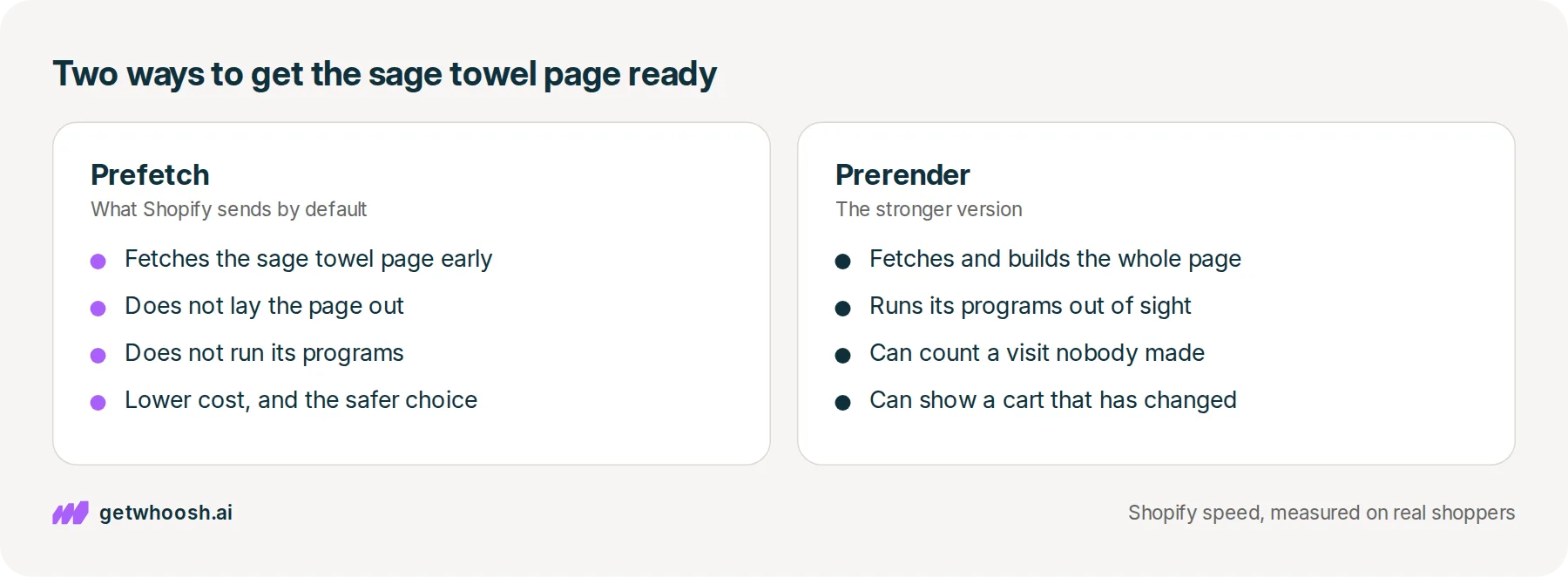
A prefetch does the first part only. Shopify’s developer guide says a prefetch fetches the page but doesn’t lay it out or run its code, which makes it the safer and cheaper choice. When the shopper lets go, the sage towel’s page is already on the phone, and the browser only has to build it.
A prerender does both parts early. The same guide says it fetches and builds the page, programs included, which costs more and makes the switch faster. The finished sage towel page waits in a hidden tab, and letting go just brings it forward.
The list that tells the browser which links to get ready, and whether to prefetch or prerender them, is what people call speculation rules. On your store, the developer guide says Shopify sends that list as a response header named Speculation-Rules, a note that travels with every page and points to a small file of rules written in a format called JSON.
So it isn’t a line in your theme, and there’s nothing for you to paste. Dawn’s main layout file has no speculation rules script in it at all.
The rules also say how early to start, which the guide calls eagerness, and here two Shopify pages disagree. The developer guide still says the default is prefetch with conservative eagerness, which starts the moment the finger goes down on the sage towel.
Shopify’s performance post from 4 May 2026 says the default switched to moderate, which starts earlier than the finger going down, and that the change is live on every store built on a Shopify theme, which Shopify calls a Liquid storefront. I can’t tell from here which word your store sends. Your own rules file can, and the last section shows where to read it.
Either way, this happens in Chrome, Edge, and Opera. The developer guide says Safari and Firefox quietly ignore these rules, so those shoppers aren’t harmed, and they don’t get the head start either.
Check your store's real numbers
The free Whoosh audit measures your store on real shopper data, names the scripts in the way, and estimates what the delay is costing. No install, about a minute.
Free. No install. Results in about a minute.
Why a pasted prerender can cost more than it saves
A prefetch spends a download on a page the shopper might open. A prerender spends a whole visit on it.
That second part is the bad news. Because a prerender runs the sage towel page’s programs before anyone arrives, the developer guide warns it can fire analytics events too early. In plain terms, your reports can count a visit to the sage towel that never happened, because the shopper slid their finger off and tapped the linen towel instead.
The hidden page can also go stale. Say the sage towel page was built in the background, and then the shopper added a different towel to the cart before opening it. That hidden copy still shows the cart as it was. The developer guide says Shopify sends a Clear-Site-Data header to wipe those hidden copies when the cart changes, and says other changes may be yours to handle.
Then there’s the cost of guessing wide. The same guide says prerendering every product link the moment the rules load can be expensive on a collection page with many products. Every towel on the page gets built whether anyone wants it or not, and that spends the shopper’s data and the effort the Tea towels page itself needed.
I know what you’re thinking. Shopify’s own guide shows how to add a prerender, so it can’t be that risky. It isn’t, in the right place. The guide’s example names a high-confidence step, such as the next step of a checkout or a View product link from a collection page, and it tells you to use prerender with caution.
The part I’d hold firm on is the pages that change when this one shopper acts. Leave cart, checkout, and account out of any prerender. Those pages are built around what the shopper has done, and a copy made a moment too early is exactly the stale page the guide describes.
Read the Speculation-Rules header in the network panel
This check takes a laptop and Chrome, on the live Tea towels collection a shopper would open, not the theme editor. You don’t change anything on the way.
-
Open your live Tea towels collection in Chrome, using the same address a shopper would use.
-
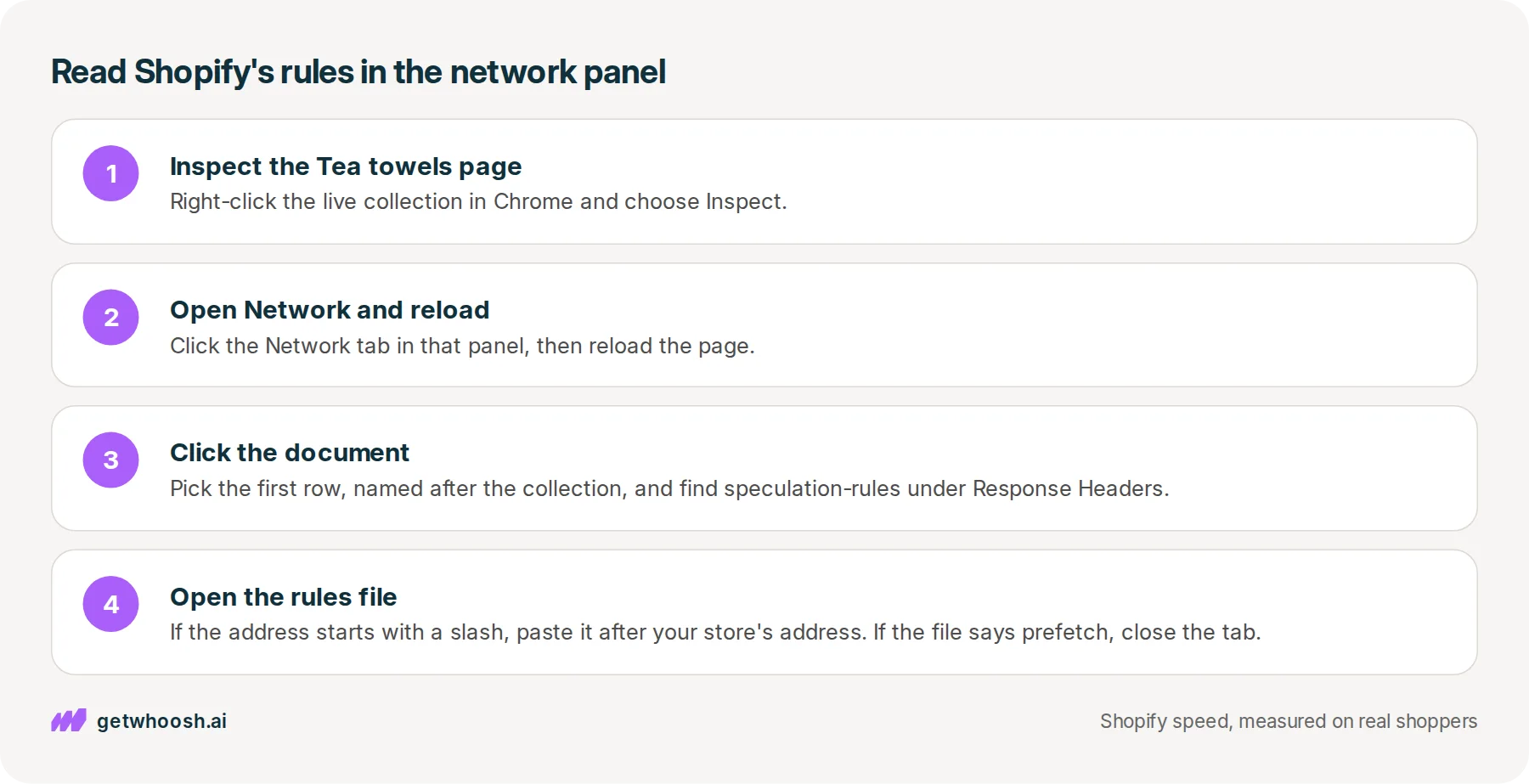
Right-click an empty spot on the page and choose Inspect. That opens a panel beside the page showing how it was put together, the one developers call DevTools.
-
Click the Network tab at the top of that panel, which is the network panel, and reload the page so it records everything the page asked for.
-
Click the first row in the list, the one named after the collection, such as tea-towels. That row is the document, the page itself. Under Headers, scroll to Response Headers and find speculation-rules.
-
Its value is an address. If it is a full web address, open it. If it begins with a slash, copy it and paste it after your store’s address in a new tab. The file that opens is short. Read whether it says prefetch or prerender, and which word sits beside eagerness.
Now read what you found. If the file says prefetch, close the tab and leave the theme alone. Shopify is already fetching the sage towel page by the time the shopper’s finger lifts, and whether the word beside it is conservative or moderate, that’s Shopify’s setting for every theme-based store, not yours to fix.
If you or a developer once pasted a prerender script into the theme, and its list covers cart, checkout, or account pages, delete that script. Shopify’s header keeps working without it, because the developer guide says the browser reads a theme’s own rules in addition to Shopify’s, not instead of them.
If you’d like the likely next page readied without writing or checking rules yourself, that’s what Whoosh’s AI Page Preloading does. It prefetches or prerenders the page a shopper is likely to open next, where the browser supports speculation rules, and it never prerenders cart, checkout, or account.
Whoosh’s pricing page lists AI Page Preloading at US$99 a month with a 7-day free trial, and it installs from the Shopify App Store. If you’re weighing a free next-page app instead, the RoarTheme comparison covers that choice, and setup questions are answered on the Whoosh FAQ page.
For most stores, though, the last step is the short one. The rules file says prefetch, the sage towel page is already on its way when a finger goes down, and you close the tab.
Questions merchants ask
Will shoppers on Safari or Firefox get the sage towel page early?
No. Shopify's developer guide says Safari and Firefox quietly ignore speculation rules today. Those shoppers are not harmed by them, and the page loads the normal way when they tap. The head start only happens in Chromium browsers such as Chrome, Edge, and Opera.
Does a prerendered page count as a visit in my reports?
It can. A prerender runs the page's programs while it is built out of sight, and Shopify's guide warns that analytics events can fire before the shopper arrives. A prefetch does not run those programs, which is one reason it is the safer default.
My rules file says moderate, but Shopify's guide says conservative. Which is right?
Both pages are Shopify's. The developer guide still describes conservative, which starts when the finger goes down. Shopify's May 2026 performance post says the default moved to moderate, which starts earlier than that press. Your file shows what your store sends today, and either way it is a prefetch you leave alone.
Do I need to add anything to theme.liquid for this to work?
No. Shopify sends its rules as a header with every page, so there is no line to paste. Dawn's layout file on GitHub has no speculation rules script in it. A theme can add its own rules on top, and the browser reads both.
Sources (6, checked 31 Oct 2026)
- 1 Shopify developer guide: speed up navigations with the Speculation Rules API (shopify.dev, checked 31 Oct 2026)
- 2 Shopify on how the platform handles theme performance (shopify.dev, checked 31 Oct 2026)
- 3 Performance @ Shopify: faster storefront navigations with moderate speculation rules (performance.shopify.com, checked 31 Oct 2026)
- 4 Dawn theme layout file theme.liquid on GitHub (github.com, checked 31 Oct 2026)
- 5 Whoosh pricing (getwhoosh.ai, checked 31 Oct 2026)
- 6 Whoosh on the Shopify App Store (apps.shopify.com, checked 31 Oct 2026)
The sage tea towel is an example, not a real store. How Shopify sends its rules, and what prefetch and prerender do, come from the Shopify pages in the sources, and Dawn's layout file was read on GitHub.
How posts are chosen, sourced, checked and corrected: our editorial policy.
Written by Edward Cameron Founder, Whoosh, Sydney, Australia
Edward Cameron is the founder of Whoosh, the Shopify speed app made in Sydney and on the Shopify App Store since August 2025. He writes here about what slows a Shopify product page and how to check it on your own store.
Next moves
Turn this into sales
Three moves, five minutes. Each one ticks itself off.
0 of 3 done
-
Measure the lift on your own store
7-day free trial on the Shopify App Store. No code, no theme edits, and a control group so the numbers are yours.
Keep reading
All posts
Guides & checklists 6 min read
How to remove unused apps from your Shopify store
A shopper opens a dark green bottle of cold-pressed olive oil, and a countdown from a sale that already ended sits above it. Uninstall the app from Settings, then Apps, then open the bottle page on your phone to make sure the bar went with it.

Guides & checklists 8 min read
Do you need to preload the hero image on your Shopify homepage?
A preload is an early request for a picture the browser would otherwise find late. On Dawn, the homepage banner is already in the page and already marked high priority, so the check is one search in the page source, and usually you close the tab.

Guides & checklists 7 min read
How to defer third-party scripts Shopify themes load before your product photo
A reviews line pasted into your theme can stop the browser reading the page before it reaches the product photo. One word on that line, defer, lets it keep reading, show the photo, and run the reviews program afterwards.
