 Start Free Trial
 Do you need to preload the hero image on your Shopify homepage?
A preload is an early request for a picture the browser would otherwise find late. On Dawn, the homepage banner is already in the page and already marked high priority, so the check is one search in the page source, and usually you close the tab.

Edward Cameron · Founder, Whoosh
8 min read

In short
On a Dawn homepage, you usually do not need to add one. A preload is an early request for a picture, sent before the browser would otherwise find it on the page. Dawn's Image banner already writes the banner photo into the page as a real picture and marks it high priority when it is the first section. A preload only earns its place when the banner is a CSS background, and it must name the exact picture shown.
- A preload is an early request for a picture the browser would otherwise find late. It helps a picture that is hard to find, not one that is already in the page.
- Dawn writes the homepage banner as a real img and marks it fetchpriority high when the Image banner is the first section. It does not add a preload, and it does not need one.
- A second hint that names a different copy of the banner makes the phone download two files, and image hints are the first ones Shopify drops when its short list of preloads is full.
- Right-click the live homepage, choose View page source, and search for rel="preload". If the banner is an img and no line says as="image", close the tab.
- If the banner only appears as a CSS background-image, switch it to an img, or add one preload naming the exact same address.
A shopper opens your homepage and waits for the apron
A shopper taps your store link on their phone and lands on the homepage. The big picture across the top is your wide-striped cotton apron, navy and cream, hanging from a hook in a sunny kitchen, and it should be the first thing they see. The menu, the headline, and the Shop now button all sit on top of that picture.
At some point a speed guide told you to preload the hero image, the big banner picture at the top. A preload is an early request: a note that tells the browser to start fetching the apron before it would otherwise find it on the page. If you typed preload hero image Shopify into a search bar, that early request is what you were after.
Here’s the good news first. On Dawn, the apron is usually being asked for early already, and the browser is told it matters most. So the job is not adding a preload. The job is one search in your homepage’s source to confirm nothing is missing, and then, most of the time, closing the tab.
What a preload is, and how Dawn already asks for the apron
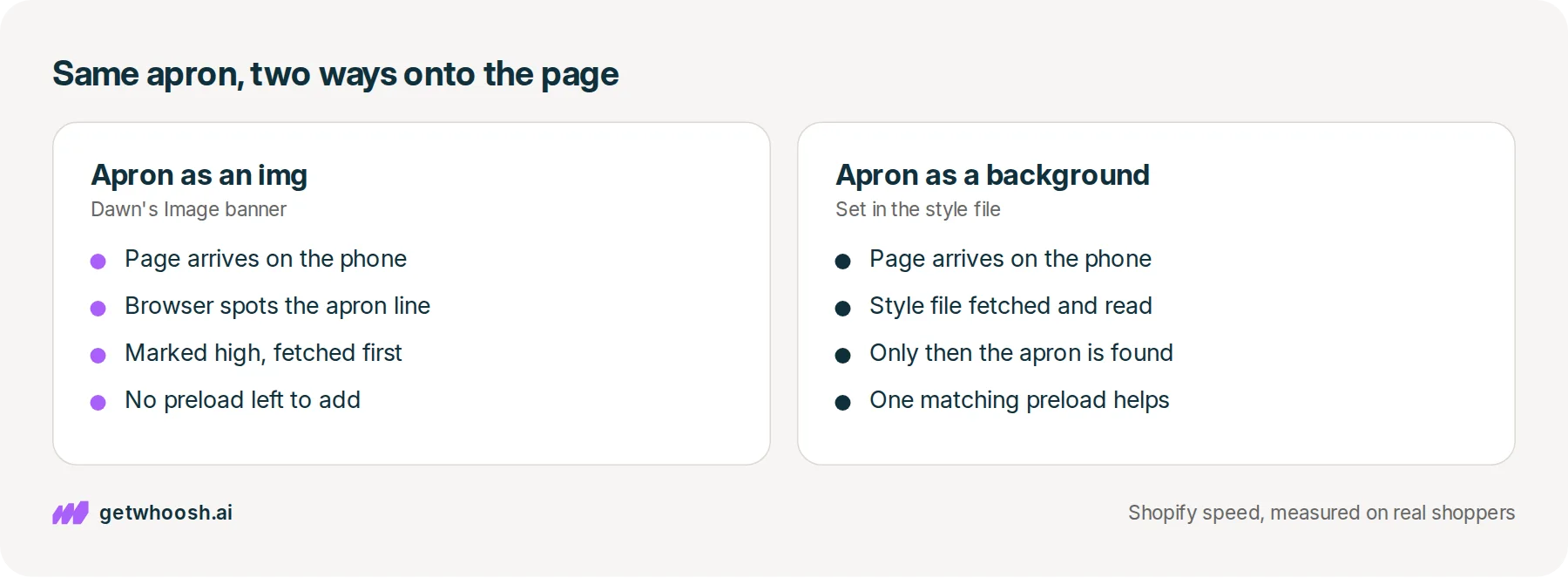
So how does the browser find the apron in the first place? When your homepage arrives, the browser skims its text for pictures before it has finished laying anything out. If the apron is written into that text as a picture line, the browser spots it on that first skim. Developers call that picture line an img, and Shopify’s guide to hero pictures says an img lets the download start straight away, alongside the style file.
Finding it is half of it. The other half is the queue. Shopify’s guide to marking the main picture says every picture starts at low priority until the browser works out which ones are on screen, and fetchpriority="high" skips that wait for one picture. It says to use it on one picture per page, and never together with lazy loading, the setting that holds a picture back until the shopper scrolls near it.
Now Dawn. Your homepage is a stack of blocks Shopify calls sections, and the apron’s Image banner sits at the top. When the banner is the first section, Dawn’s Image banner file writes the apron as an img and marks it high priority. It does not ask for a preload, and the reason it can skip one comes down to a single distinction.
Shopify’s preload guide draws the line in one sentence: a preload helps the browser discover something it would otherwise find too late, while high priority raises a picture the browser already knows about. A preload helps the browser find a picture. Dawn’s apron was never lost.
Shopify’s guides call the moment that biggest picture shows up Largest Contentful Paint, and they use that name to pick the one picture that gets the high mark. On your homepage, that picture is the apron.
In your homepage’s source, Dawn’s apron line looks roughly like this, trimmed. You don’t have to write it, only recognise it:
<img src="//your-store.com/cdn/shop/files/striped-apron.jpg?width=3840"
  srcset="...striped-apron.jpg?width=375 375w, ...striped-apron.jpg?width=750 750w, ..."
  sizes="100vw"
  fetchpriority="high">
The srcset part is a list of apron copies at different widths, and the phone picks the one that fits its screen. The last line is the high-priority mark.
There is one more thing Shopify can do on its own, so you don’t redo it by hand. When a theme adds preload: true to a picture, Shopify’s image_tag notes say the preload travels as a note in the response header, ahead of the page, and the img line itself does not change.
Shopify’s image filter guide shows that pattern for the first banner only, gated by which section it is, together with high priority and no lazy loading. Because the note is built from the same picture line, it carries the same list of apron copies the page shows.
So both things are true. Shopify’s own pattern puts a preload on the first banner, and Dawn ships without it. Neither is a reason for you to paste in a second line.
Check your store's real numbers
The free Whoosh audit measures your store on real shopper data, names the scripts in the way, and estimates what the delay is costing. No install, about a minute.
Free. No install. Results in about a minute.
Why a second hint for the apron makes things worse
But here’s the catch. Adding a preload for an apron the browser already found is not harmless. Shopify’s preload guide uses this exact case as its example of misuse, a preload line for the hero sitting above an img for the same hero, and says preloading something already in the page brings no benefit.
It gets worse when the hint and the picture disagree. Say a hand-written preload names the 1500-wide apron, while Dawn’s img lets a phone choose the 750-wide copy from its list. Those are two different files, so the phone downloads both: the one the hint asked for and the one the page shows.
web.dev’s guide to preloading responsive images recommends skipping a preload when the picture is quickly found in the page, partly because a hand-written hint can fall out of step with the page when the picture changes. Swap the striped apron for a linen one in spring, and the old line keeps fetching the old apron.
There is a budget, too. Shopify’s preload guide says it sends at most 10 preload notes per page, its own notes for style files and scripts go first, and picture preloads come last, so a picture hint is the first one dropped when the list is full. Shopify’s platform guide says to keep the hints your theme adds to one or two.
I know what you’re thinking. A guide told you to paste a preload line into theme.liquid, and it sounded official. That advice was written for a banner the browser finds late, which is the one case where a preload is the missing piece.
Some themes and custom sections draw the banner as a background, set inside the style file rather than written into the page as a picture. Shopify’s hero picture guide walks the order: the page arrives, the browser fetches the style file, reads it, and only then learns the apron exists. web.dev’s guide to resource hints names background pictures like this as the late finds a preload is meant for.
Even then, Shopify’s first choice is to switch the background to an img. If that can’t happen, one preload that names the exact same apron address is the fix the web.dev guide describes.
Whichever way the apron gets on the page, it should never be lazy-loaded, and Shopify’s lazy loading guide calls lazy loading the main picture one of the most common mistakes in Shopify themes.
Search the page source for a preload, then close the tab
Here’s the check, on the page a shopper opens. A laptop is easier than a phone for this one, because you’ll be searching a long page of text.
-
Open your live homepage in Chrome from the address a shopper would type, not from the theme editor.
-
Right-click an empty spot on the page and choose View page source. A new tab opens with the page’s text, exactly as your store sent it.
-
Press Ctrl+F, or Cmd+F on a Mac, and search for
rel="preload". Only lines that also sayas="image"matter here. Lines that sayas="font"are for your text, so leave them. -
Search for
fetchprioritynext. It should land on animgline with your apron’s file name in it, and that line should not sayloading="lazy".
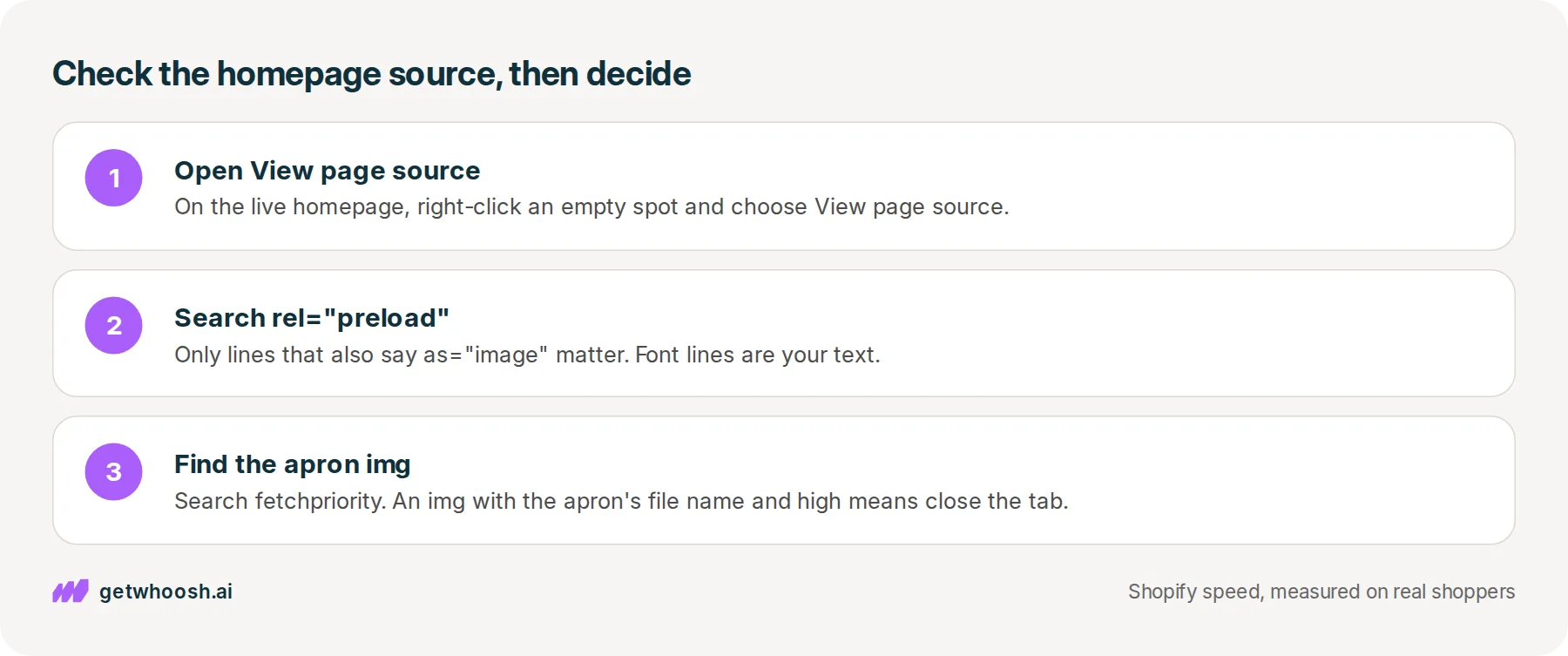
Now read what you found. If the apron is an img marked fetchpriority="high", and no preload line says as="image", close the tab. Dawn already asked for the apron early and put it first in the queue. A preload sent from preload: true travels in the header rather than the page text, so it won’t appear here, and it is built from the same apron line anyway.
If you find an image preload naming the apron at a width the img never lists, that’s the second hint from the last section. Ask whoever added it, a developer or an app, to take it out.
If the apron only shows up inside background-image: url(...) and there is no img for it, this is the one case that needs a fix. The cleaner fix is showing the apron through Dawn’s own Image banner section, which writes it as an img. If that section can’t make the design you want, add one preload that names exactly the same apron address the background uses.
Two neighbouring cases have their own posts. If the apron is in the page and marked high but still shows up pale for a beat, that’s a fade, and the Dawn fade post covers it. If the picture you were worried about is a product photo rather than the homepage banner, the product page photo check is the other page.
If you’d rather not read page source at all, Whoosh’s AI Page Preloading preloads the real main picture from real-user data, meaning the picture shoppers on your homepage saw first, not a guess from the page code. Whoosh’s pricing page lists AI Page Preloading at US$99 a month with a 7-day free trial, and the same plan is on the Shopify App Store.
For most Dawn homepages, though, the last step is the easy one. The apron is an img, it says high, the source has no image preload, and you close the tab.
Questions merchants ask
My homepage starts with a slideshow, not an Image banner. Should I preload every slide?
No. Only the first slide a shopper sees could ever need one, and only if the browser finds it late. Shopify asks themes to keep their own picture hints to one or two, and to mark just one picture per page as high priority, so preloading every slide spends the budget on pictures nobody is looking at yet.
Can I add preload: true to Dawn's banner file myself?
You can, and it is the pattern Shopify shows for the first banner. The hint is built from the same picture line, so it names the same set of copies the page shows. Keep it on the first section only, and compare the homepage before and after, because Shopify says to test a preload rather than assume it helps.
Will a hand-written preload pick the right apron for a phone and a laptop?
Only if it carries the same list of widths as the picture. A line with a single address fetches that one copy on every screen, while the picture itself picks a smaller copy on a phone, so the phone ends up with two files. The preload Shopify builds from image_tag copies the picture's own list, which avoids that.
Should the homepage banner ever be lazy-loaded?
No. Lazy loading holds a picture back until the shopper scrolls near it, and the banner is already on screen when the page opens. Shopify says never to lazy-load the main picture in the first screen, and never to combine lazy loading with the high priority mark.
Sources (12, checked 28 Oct 2026)
- 1 Shopify on using preload resource hints sparingly (shopify.dev, checked 28 Oct 2026)
- 2 Shopify Liquid image_tag filter (shopify.dev, checked 28 Oct 2026)
- 3 Shopify on how the platform handles theme performance (shopify.dev, checked 28 Oct 2026)
- 4 Shopify on using image filters efficiently (shopify.dev, checked 28 Oct 2026)
- 5 Shopify on avoiding CSS background images for the hero (shopify.dev, checked 28 Oct 2026)
- 6 Shopify on never lazy loading the LCP image (shopify.dev, checked 28 Oct 2026)
- 7 Shopify on marking the LCP image fetchpriority high (shopify.dev, checked 28 Oct 2026)
- 8 web.dev on resource hints (web.dev, checked 28 Oct 2026)
- 9 web.dev on preloading responsive images (web.dev, checked 28 Oct 2026)
- 10 Dawn theme Image banner section on GitHub (github.com, checked 28 Oct 2026)
- 11 Whoosh pricing (getwhoosh.ai, checked 28 Oct 2026)
- 12 Whoosh on the Shopify App Store (apps.shopify.com, checked 28 Oct 2026)
How Dawn asks for the banner comes from Dawn's public Image banner file on GitHub, and the preload advice comes from Shopify's and Google's guides linked in the sources. The striped apron is an example, not a real store.
How posts are chosen, sourced, checked and corrected: our editorial policy.
Written by Edward Cameron Founder, Whoosh, Sydney, Australia
Edward Cameron is the founder of Whoosh, the Shopify speed app made in Sydney and on the Shopify App Store since August 2025. He writes here about what slows a Shopify product page and how to check it on your own store.
Next moves
Turn this into sales
Three moves, five minutes. Each one ticks itself off.
0 of 3 done
-
Measure the lift on your own store
7-day free trial on the Shopify App Store. No code, no theme edits, and a control group so the numbers are yours.
Keep reading
All posts
Guides & checklists 7 min read
How to fix LCP on the Dawn theme when the homepage banner fades in
Dawn already asks for the big homepage photo ahead of the other pictures. What still keeps a shopper staring at a pale block is a fade Dawn switches on by default, and turning it off is one checkbox.

Apps & scripts 6 min read
Why Shopify image optimization still leaves photos slow
Shopify already makes small, light copies of the product photo you upload. The shopper still waits when the theme asks for the biggest copy, or makes the first photo queue behind the rest of the gallery.

Guides & checklists 7 min read
How to defer third-party scripts Shopify themes load before your product photo
A reviews line pasted into your theme can stop the browser reading the page before it reaches the product photo. One word on that line, defer, lets it keep reading, show the photo, and run the reviews program afterwards.
