 Start Free Trial
 How to fix LCP on the Dawn theme when the homepage banner fades in
Dawn already asks for the big homepage photo ahead of the other pictures. What still keeps a shopper staring at a pale block is a fade Dawn switches on by default, and turning it off is one checkbox.

Edward Cameron · Founder, Whoosh
7 min read

In short
To fix LCP on the Dawn theme's homepage, leave the banner photo alone and turn off the fade. Dawn already asks for the first Image banner's photo ahead of the other pictures. Its default Reveal sections on scroll setting then starts that photo almost see-through and fades it in, and Shopify warns that fades like this can delay the moment a photo counts as shown. Untick it under Theme settings, Animations, then check the live homepage.
- Dawn already marks the photo in the first Image banner as high priority and never tells it to wait for a scroll, so there is no code to add.
- Reveal sections on scroll is on by default, and it starts the banner almost see-through before fading it in, even when the photo has finished downloading.
- Untick it under Theme settings, Animations, then make sure the Image banner's own Animation setting is None.
- Check the live homepage in Chrome's Performance panel, not the editor preview, and tick the box again if the fade was not the wait.
A shopper waits for the lamp on your Dawn homepage
A shopper taps your store link on their phone and lands on the Dawn homepage. The first thing on the screen is the big photo at the top, which Dawn calls the Image banner, and on your store it is a ceramic lamp glowing on a side table. For a beat there is a pale empty block, and then the lamp drifts into view.
That pale beat is the part you can fix, and it is usually not the photo. Dawn already asks for the lamp ahead of the other pictures on the page. What holds it back is a fade Dawn turns on by default, and switching it off is one checkbox in the theme editor, with no code.
The moment the big photo appears on screen has a name, Largest Contentful Paint, or LCP, and Google’s guide to it says a good page gets there in 2.5 seconds or less for at least 75% of visits. When people want to fix LCP on the Dawn theme, the lamp showing up sooner is what they are after.
Dawn already asks for the lamp first, then fades it in
Let’s start with what Dawn gets right, so you don’t redo it. Your homepage is a stack of blocks Shopify calls sections, and the lamp’s Image banner sits at the top as the first one. When the banner is first, Dawn’s banner file marks its photo as high priority, which tells the phone to fetch the lamp ahead of the other pictures on the page.
Dawn also never tells that photo to wait for a scroll. Shopify’s notes for theme builders say photos in the first three sections of a page load straight away, and only the ones further down wait until the shopper scrolls near them. The product photo gallery is a different set of choices, and the post on Shopify image optimization walks through that one.
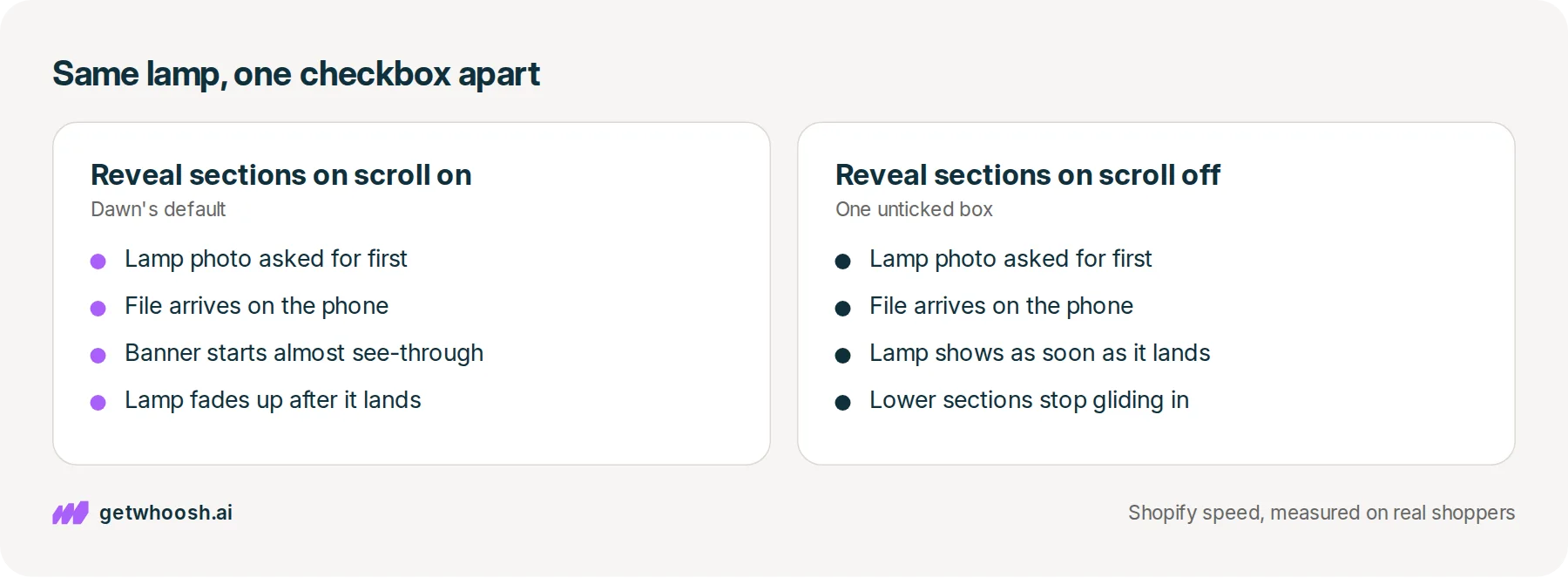
So if Dawn is already fetching the lamp first, what is the pale block? It is a setting under Theme settings, then Animations, called Reveal sections on scroll, and Dawn switches it on out of the box. It makes each section glide in as the shopper scrolls toward it, which looks lovely further down the page.
At the very top there is nothing to scroll toward, so the banner simply fades up as the page opens. Dawn’s style file starts the banner almost see-through and brings it to full colour over 600 milliseconds. The lamp file can be sitting on the shopper’s phone that whole time, downloaded and ready, while they look at a pale block.
Shopify’s page on hiding the main photo behind animations says fades and reveal effects can delay LCP by several seconds even after the image has fully downloaded, because the browser does not count a photo the shopper cannot see.
Dawn starts its fade almost see-through rather than fully invisible, so how much it costs on your homepage depends on the phone and the browser. That is why the check below compares two moments on your own homepage instead of trusting a number from me.
There is one more switch on the banner itself. The Image banner section has its own Animation setting, and its default is None. If someone changed it to Ambient movement, Dawn’s banner file asks for a copy of the lamp wider than the screen so the photo has room to drift, and Shopify’s advice is to keep moving effects off the main photo altogether.
Check your store's real numbers
The free Whoosh audit measures your store on real shopper data, names the scripts in the way, and estimates what the delay is costing. No install, about a minute.
Free. No install. Results in about a minute.
Why the lamp should appear the moment it lands
The shopper opened your homepage to see the lamp. The fade adds nothing they asked for at the top of the page, and the cost of removing it is one unticked box. There is no code to edit and no developer to brief, and you can tick it again whenever you like.
Here’s the trade-off, said plainly. Reveal sections on scroll is one setting for the whole theme, so when you turn it off, every section on every page stops gliding in. Your featured collection and your newsletter block will simply be there when the shopper scrolls to them, the same way the lamp will be.
I know what you’re thinking. The glide is part of why the store feels polished. Shopify’s animation page describes how a developer can leave the first section out of the effect and keep it lower down, but that is a change to the theme’s code. You can give the checkbox a crack tonight.
You might also have read guides telling you to add a preload line to your theme’s code so the photo is fetched even earlier. Skip that here, because Dawn already asks for the lamp first, and Shopify’s performance notes warn that overusing preload can make pages slower.
One thing makes the fade easy to miss. Once you change or move a section in the theme editor, Dawn switches the reveal off in the preview so you can see your edits, which means the preview can show the lamp straight away when the live page does not. Only the live homepage shows you what the shopper sees.
Turn off the fade, then check the live homepage
Here are the clicks, in the order you’ll make them:
-
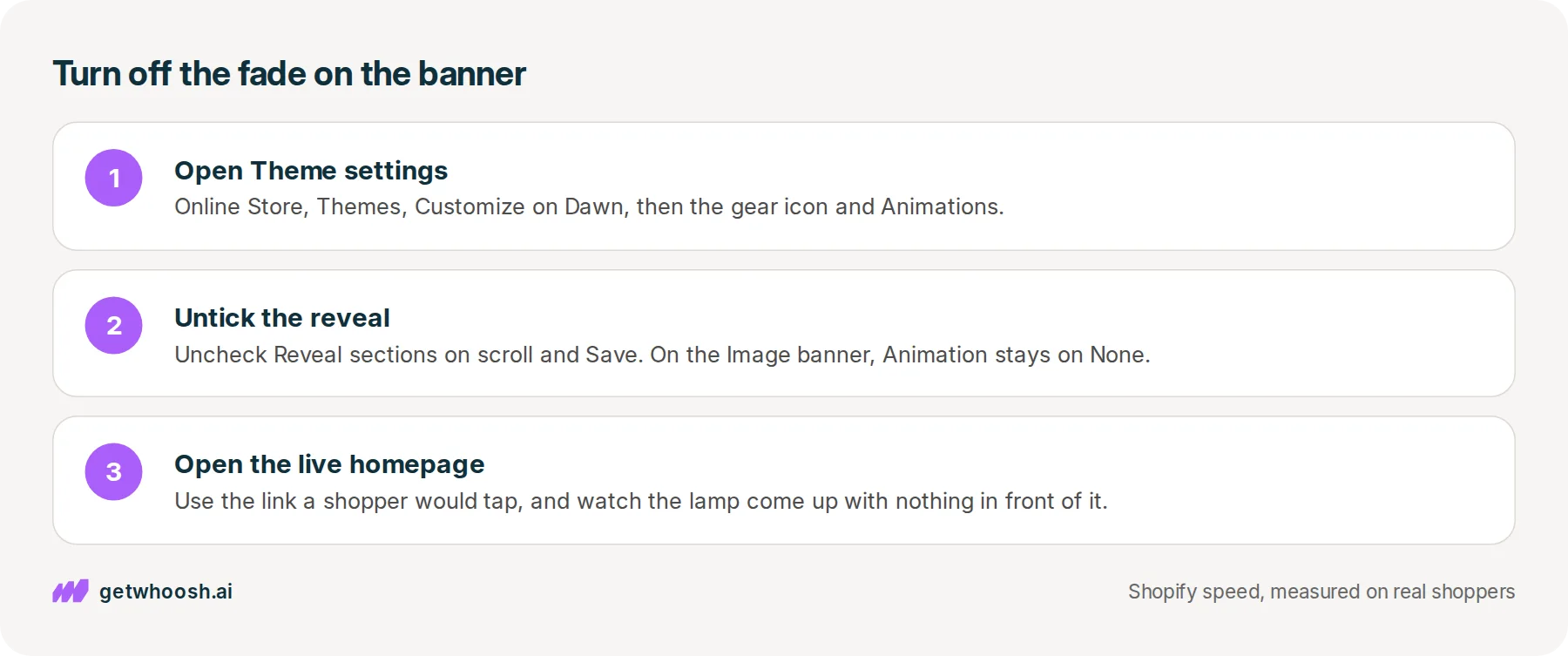
In your Shopify admin, go to Online Store, then Themes, and click Customize on Dawn.
-
Click Theme settings, the gear icon, and open Animations.
-
Uncheck Reveal sections on scroll, then click Save.
-
Click the Image banner section at the top of the homepage and check that Animation says None. If it says Ambient movement, Fixed background position, or Zoom in on scroll, set it back to None and save again.
To see what changed, open the live homepage on a laptop in Chrome, using the link a shopper would tap rather than the editor. Right-click anywhere on the page and choose Inspect, which opens Chrome’s panel for looking under the hood of a page. Pick the Performance panel, the tab where you record a page load, and click the round reload arrow to record one.
When the recording finishes, you’re looking for two moments. The first is when the lamp photo finished downloading, which is where its bar ends in the Network row. The second is the LCP marker in the Timings row, which is when Chrome counted the lamp as on screen.
Shopify’s animation page says a gap of more than 500 milliseconds between those two moments means something is delaying paint. What you don’t want is the lamp finished downloading and then sitting invisible, so with the fade gone the marker should sit close behind the end of the lamp’s bar.
For a before and after, record once with the box still ticked, then again after you save. If the gap was small even with the fade on, the fade was not what held your lamp back, so go back to Theme settings, open Animations, tick Reveal sections on scroll, and save to bring the glide back.
If the gap is still there with the box unticked, look for an app that adds its own fade to images, since Shopify’s page names apps as well as themes.
Once the fade is gone, the lamp shows up the moment it arrives, so the only wait left is how early it arrives. If your recording shows other apps’ files, like a chat widget or a review badge, being fetched ahead of the lamp, that is the part Whoosh works on.
Whoosh’s AI Page Preloading learns from real visits which photo shoppers see first on the homepage, and asks the phone for that photo as early as it can. It does not copy your theme, and it does not turn this animation off for you, so the checkbox is still yours.
AI Page Preloading is US$99 a month with a 7-day free trial, and the speed check will measure your homepage first if you’d rather see where the lamp sits before installing anything.
Last step, and it’s the one the shopper feels. Leave Reveal sections on scroll unticked, pick up your phone, and open the homepage from the same link a shopper would tap. The lamp should be there as the page opens, with no pale block in front of it.
Questions merchants ask
Will turning off Reveal sections on scroll change my other pages?
Yes. It is one setting for the whole theme, so every section on every page stops gliding in as the shopper scrolls. Your photos, layout, text, and apps stay exactly as they were. Only the movement goes.
My Image banner is not the first section. Is it still marked high priority?
No. Dawn only marks the banner photo high priority when the banner is the first section on the page. If a slideshow or a text block sits above it, drag the Image banner to the top of the homepage in the theme editor and save, so the lamp is the first thing the phone asks for.
Why can the theme editor show the banner with no fade?
Once you change or move a section, Dawn turns the reveal off inside the editor preview so you can see your edits. The live homepage keeps the fade until you untick the box, so always check the page from the link a shopper would use.
Do I need an app to fix the fade?
No. The fade is a theme setting, and unticking the box is the whole fix. If the gap between the photo arriving and the photo showing is still there afterwards, check whether an installed app adds its own fade-in to images, because that brings the same delay back.
Sources (7, checked 8 Oct 2026)
- 1 Shopify on not hiding the LCP image behind animations (shopify.dev, checked 8 Oct 2026)
- 2 Shopify on never lazy loading the LCP image (shopify.dev, checked 8 Oct 2026)
- 3 Shopify theme performance best practices (shopify.dev, checked 8 Oct 2026)
- 4 Dawn theme Image banner section on GitHub (github.com, checked 8 Oct 2026)
- 5 Dawn theme settings schema on GitHub (github.com, checked 8 Oct 2026)
- 6 Dawn theme base stylesheet on GitHub (github.com, checked 8 Oct 2026)
- 7 web.dev on optimizing Largest Contentful Paint (web.dev, checked 8 Oct 2026)
How Dawn handles the Image banner comes from Dawn's public theme files on GitHub, and the measuring advice comes from Shopify's and Google's guides linked in the sources. This post uses no private store data.
How posts are chosen, sourced, checked and corrected: our editorial policy.
Written by Edward Cameron Founder, Whoosh, Sydney, Australia
Edward Cameron is the founder of Whoosh, the Shopify speed app made in Sydney and on the Shopify App Store since August 2025. He writes here about what slows a Shopify product page and how to check it on your own store.
Keep reading
All posts
Apps & scripts 6 min read
Why Shopify image optimization still leaves photos slow
Shopify already makes small, light copies of the product photo you upload. The shopper still waits when the theme asks for the biggest copy, or makes the first photo queue behind the rest of the gallery.

Apps & scripts 7 min read
Why is Shopify mobile page speed slower than your laptop?
Your camel suede loafers load fine on the laptop in the back office, and a shopper in a waiting room waits for them on their phone. The phone gets the same page with less to work with. Here is how to tell whether it has a problem of its own, and what to check first.

Apps & scripts 7 min read
Does page speed affect SEO on Shopify?
A shopper types leather slippers into Google on their phone. Google shows the page that matches those words best, even when it is slow, and speed only counts between pages that match equally well. Here is the phone check that tells you which one to fix first.
