 Start Free Trial
 How to defer third-party scripts Shopify themes load before your product photo
A reviews line pasted into your theme can stop the browser reading the page before it reaches the product photo. One word on that line, defer, lets it keep reading, show the photo, and run the reviews program afterwards.

Edward Cameron · Founder, Whoosh
7 min read

In short
To defer third-party scripts on Shopify, open layout/theme.liquid in the code editor and find the line that loads a file from another website, like a reviews widget, with no defer on it. Defer is the word that lets the browser keep reading the page, mug photo included, and run that other website's file once the page has been read. Add it to that one line, save, and open the live product page.
- A reviews line pasted into layout/theme.liquid with no defer on it makes the browser stop reading the page until the reviews program has run, so the product photo waits.
- Adding the word defer to that one line lets the browser keep reading, draw the photo, and run the reviews program once the page has been read.
- Leave the theme's own lines, Shopify's content_for_header line, and any A/B test snippet alone, and delete a line from an app you no longer use.
- After Save, open the live product page and View page source. If the reviews address is not a line in your theme, stop editing and ask the app developer.
A shopper opens your speckled stoneware mug
Someone taps the link to your speckled stoneware mug on their phone, the one with the oatmeal glaze and the little brown flecks. They want to see the mug itself: the speckles, the curve of the handle, how big it looks in a hand. Instead they get the name, the price, and an empty grey box where the photo should be, and the mug turns up a beat later.
One common reason is a single line in a file you may never have opened. When you added a reviews app, you or its setup guide may have pasted a line into your theme that fetches a small program from the reviews company’s own website, so the stars can appear under the mug. That line sits in layout/theme.liquid, the file that wraps every page of your store, and people who build websites call a program like that a third-party script.
How that line is written decides whether the browser waits for it before it gets to the photo. Most store owners go looking for a way to delay it, and the word the browser understands is defer. That one word is how you defer third-party scripts on Shopify when the line is in your theme, and the reviews app stays exactly where it is.
What defer tells the browser about the reviews line
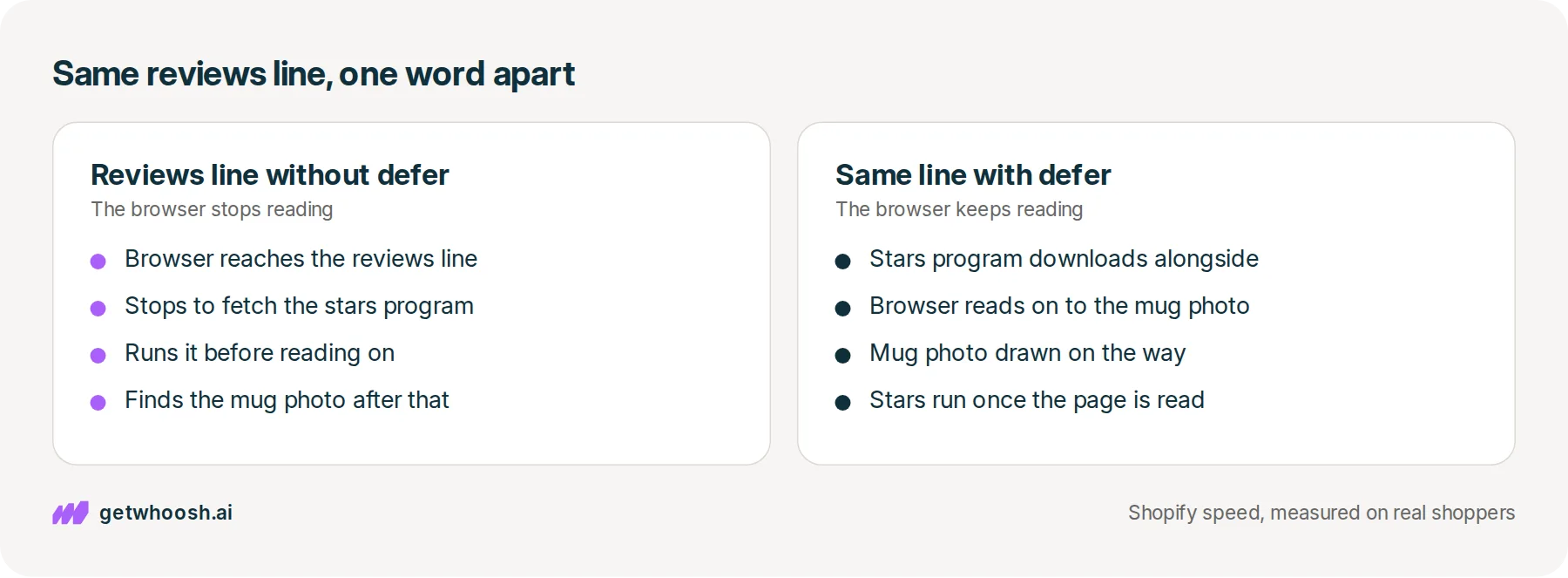
So what is the browser doing when it reaches that line? It reads your page from top to bottom, a bit like a recipe, and the reviews line sits above the mug photo. Shopify’s guide to deferring scripts says that when the browser meets a line like this with neither defer nor async on it, it stops reading, downloads the program, runs it, and only then carries on. async is the other word you might see on a line, and it means that file can run the moment it arrives, out of order.
The same guide puts the cost plainly: nothing below that line is found or drawn until the program finishes, and the mug photo is below it. So the shopper is waiting on the reviews company’s website to answer, the program to arrive, and the program to run, all before the browser even learns there is a photo to fetch.
Adding defer changes one thing about that line. Shopify’s guide says a program marked defer downloads in the background while the browser keeps reading, then runs in page order once the whole page has been read. The browser finds the mug photo on the way down and draws it, and the stars arrive after.
Here is the reviews line before and after. The address is the made-up one Shopify uses in its own example, so yours will name your reviews company instead.
<script src="https://reviews.example.com/widget.js"></script>

<script src="https://reviews.example.com/widget.js" defer></script>
That async word lets the browser keep reading too, but it runs the program the moment it lands, in no fixed order. Shopify’s guide keeps async for a file that stands entirely alone, like a tracking pixel, and says to use defer when the program needs the page or needs another file to run first. The reviews program needs the page, because its whole job is putting stars under the mug, so it gets defer.
Check your store's real numbers
The free Whoosh audit measures your store on real shopper data, names the scripts in the way, and estimates what the delay is costing. No install, about a minute.
Free. No install. Results in about a minute.
Why one word on the reviews line is worth the edit
The photo sells the mug. The stars talk a hesitant shopper into buying it, and nobody reads reviews of a mug they cannot see yet. With defer, both still arrive, just in the order the shopper wants them.
It also costs you nothing you were using. The reviews app stays installed, the stars still show under the mug, and the edit is one word you can take back from the editor’s own history. That is a small change for a line every shopper passes through.
Every shopper on every page, in fact, because the line is in layout/theme.liquid. Shopify’s guide to auditing third-party scripts says a review widget only needs to load on product pages, and it shows the reviews line wrapped in a check so it only runs when the page is a product:
{% if template.name == 'product' %}
  <script src="https://reviews.example.com/widget.js" defer></script>
{% endif %}
With that wrapper, your homepage and your collection pages stop fetching stars they never show. And if the line belongs to a reviews app you have already uninstalled, Shopify’s guide to deferring scripts is clear that removing a script beats delaying it, so delete the line instead.
I know what you’re thinking. If one word works this well, why not add it to every line in the file? Because some lines must not wait. Dawn’s own lines already say defer="defer", and {{ content_for_header }} is Shopify’s own line, which Shopify says you cannot defer.
The other one to leave alone is an A/B test snippet that hides the page until the test picks a version. Shopify’s guide says deferring it flashes the original page first, and if you are not running a test, it says to remove that snippet entirely.
Add defer to the reviews line, then open the mug
Here are the clicks, in the order you will make them. A laptop is easier than a phone for this one, because you will be reading a long file.
-
From your Shopify admin, go to Online Store, then Themes. On the theme you want to change, click the three dots, then Edit code, which is the way in that Shopify’s code editor page describes.
-
In the Layout folder, open
theme.liquid. Shopify’s audit guide names this as the file to check for script lines that apps paste in. -
Look for a line that starts with
<scriptand has an address beginninghttps://that names another website, such as your reviews company. Skip the theme’s own lines: in Dawn’s theme.liquid, files likeglobal.jsalready end indefer="defer", so they are done. -
On the reviews line, type
deferjust before the closing>, so it reads like the second line in the example above. If the line already saysdeferorasync, leave it as it is. -
Click Save in the upper-right corner of the editor. If anything looks wrong afterwards, open the Timeline panel at the bottom right, pick the earlier version, and click Revert contents, all of which the code editor page covers.
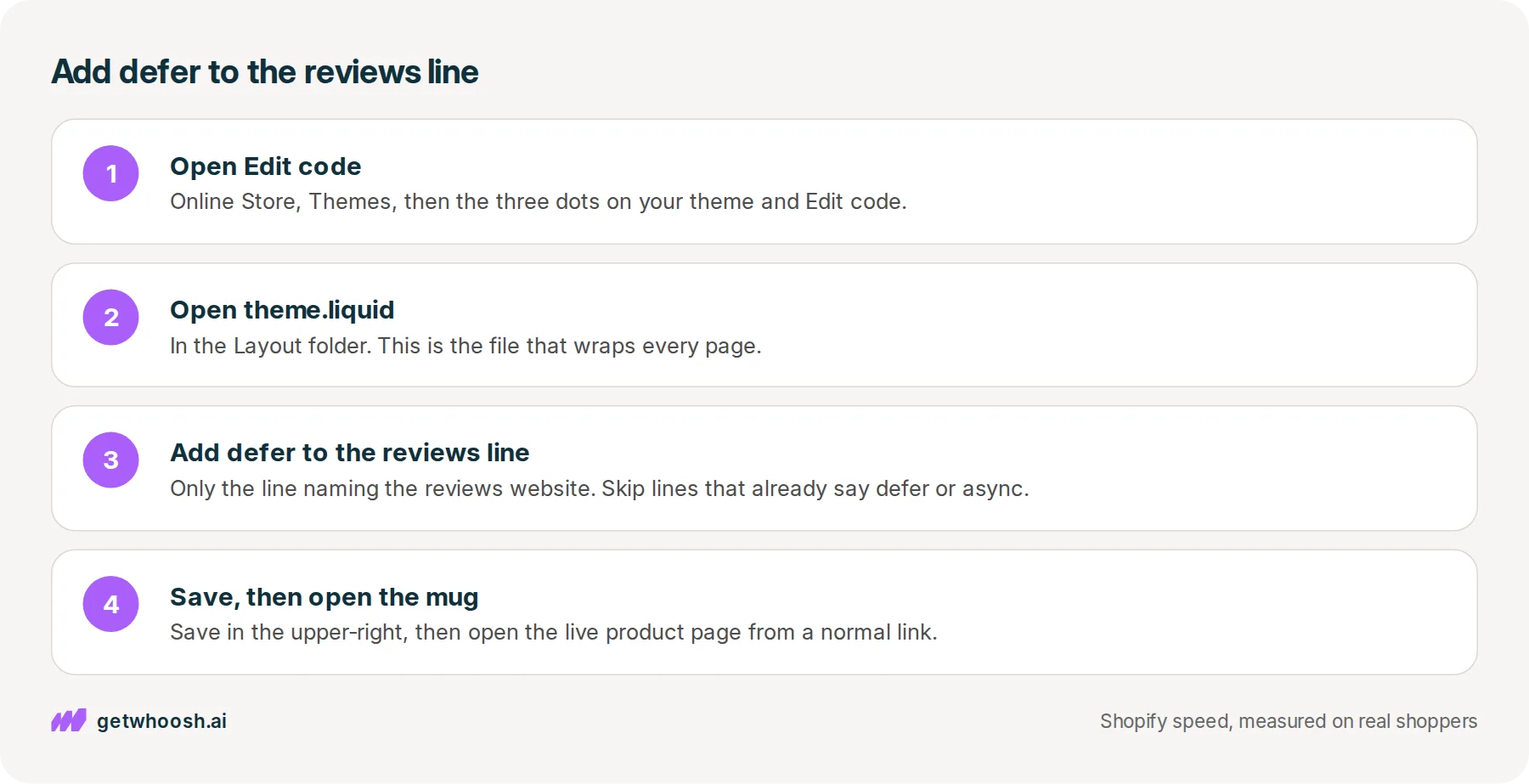
Now open the live mug page from a normal link, the way a shopper would, rather than from the editor. The speckled mug should be on screen first, with the stars filling in under it a moment later. Scroll down to the reviews and open one, so you know the program still runs.
Then right-click anywhere on the page and choose View page source, which shows the page exactly as your store sent it. Search that page for your reviews company’s address, the same check Shopify’s audit guide uses, and the reviews line should now contain defer.
But here’s the catch. If the reviews company’s address is not a line in layout/theme.liquid, stop editing. Apps that add their program through Shopify’s ScriptTag API are not a line in your theme at all, and Shopify’s guidance says to ask the app developer to use defer instead.
If the stars come from a switch in the theme editor instead, that is the App embeds list in the post on why a Shopify store is slow. If the thing landing ahead of the mug is an email popup, the Klaviyo post covers that program.
The program you cannot reach from the code editor is where Whoosh comes in. Smart App Loading sequences third-party scripts so they do not race the product image. Whoosh’s pricing page lists Smart App Loading at US$99 a month, with a 7-day free trial and no code required. The same plan is on the Shopify App Store. It works alongside your reviews app, so nothing gets uninstalled, and it does not copy your theme.
Whichever way the stars get there, the test is the one you just ran. Open the mug, and the speckles should be on screen before the stars.
Questions merchants ask
My theme is not Dawn. Does defer still work?
Yes. Defer is an instruction to the browser, not a Dawn feature, so it works the same in any theme. The file to open is still theme.liquid in the Layout folder. Your theme's own lines may be written differently, so only change the line that names another website, and leave anything that already says defer or async.
There is no reviews line in theme.liquid, only a render line pointing to a snippet. What then?
Some apps put their line in a small file in the Snippets folder, and a render line in theme.liquid loads it on every page. Open that snippet and look for the same kind of line. If the snippet belongs to an app you have uninstalled, Shopify's audit guide says you can delete it along with the render line that loads it.
I uninstalled my old reviews app. Could its line still be there?
Yes. Uninstalling an app does not always take its code out of the theme. Search the theme files for the old app's name or its website address. If you find its line, delete it rather than adding defer, because a program nobody uses should not load at all.
Can I make the reviews load only when the shopper scrolls down to them?
Yes, but that is a bigger change than one word. Shopify's audit guide shows a chat program that only loads once the shopper scrolls, using a few lines of code instead of a plain script line. If someone already looks after your theme's code, ask them. Otherwise, defer plus the product-page check covers the reviews line.
Sources (7, checked 25 Oct 2026)
- 1 Shopify on the theme code editor (shopify.dev, checked 25 Oct 2026)
- 2 Shopify on using defer and async on non-critical scripts (shopify.dev, checked 25 Oct 2026)
- 3 Shopify on auditing and removing third-party scripts (shopify.dev, checked 25 Oct 2026)
- 4 Shopify on deferring render-blocking CSS and JavaScript (shopify.dev, checked 25 Oct 2026)
- 5 Dawn theme layout file on GitHub (github.com, checked 25 Oct 2026)
- 6 Whoosh on the Shopify App Store (apps.shopify.com, checked 25 Oct 2026)
- 7 Whoosh pricing (getwhoosh.ai, checked 25 Oct 2026)
The steps come from Shopify's developer guides on the code editor, deferring scripts, and auditing third-party scripts, plus Dawn's public layout file on GitHub, all checked on 25 Oct 2026. The speckled stoneware mug is an example, not a real store.
How posts are chosen, sourced, checked and corrected: our editorial policy.
Written by Edward Cameron Founder, Whoosh, Sydney, Australia
Edward Cameron is the founder of Whoosh, the Shopify speed app made in Sydney and on the Shopify App Store since August 2025. He writes here about what slows a Shopify product page and how to check it on your own store.
Next moves
Turn this into sales
Three moves, five minutes. Each one ticks itself off.
0 of 3 done
-
Measure the lift on your own store
7-day free trial on the Shopify App Store. No code, no theme edits, and a control group so the numbers are yours.
Keep reading
All posts
Guides & checklists 7 min read
How to fix LCP on the Dawn theme when the homepage banner fades in
Dawn already asks for the big homepage photo ahead of the other pictures. What still keeps a shopper staring at a pale block is a fade Dawn switches on by default, and turning it off is one checkbox.

Guides & checklists 8 min read
Do you need to preload the hero image on your Shopify homepage?
A preload is an early request for a picture the browser would otherwise find late. On Dawn, the homepage banner is already in the page and already marked high priority, so the check is one search in the page source, and usually you close the tab.

Agentic commerce 7 min read
What does Shopify robots.txt GPTBot control?
A shopper asks ChatGPT for a navy wool blanket. Whether OpenAI may read your blanket page is in one small file at your store's address plus /robots.txt, and the GPTBot line in it is about training, not about whether she finds you.
