 Start Free Trial
 What does a meta description checker tell you about your Shopify store?
You paste your spatula's link into a meta description checker and get a length score. Here is what that score reads, where Shopify already shows the same line, and why it is not the line Google prints.

Edward Cameron · Founder, Whoosh
6 min read

In short
A meta description checker reads the short line your page offers Google for the space under its link, then grades how long it is. For one product, Shopify's admin already shows that line, and View Page Source on the live page confirms the page is sending it. A checker earns its place when you need to find every page missing a line. It cannot show you the words Google will print.
- A meta description checker finds the line your page offers for the space under its Google link, and grades its length against a guideline.
- For one product, the Search engine listing box in the Shopify admin shows the line, and View Page Source on the live page confirms the page sends it.
- A good score is not the line a shopper reads. Google mostly builds that text from the page, and can show different words for different searches.
- A store-wide scan is the better tool when you need to find every product, collection, and page that is missing a line without opening each one.
You paste the spatula’s link into a checker
You sell a thin stainless steel spatula, and someone has told you to check its meta description. So you copy the product’s link from your browser, paste it into a free checker, and press the button. A moment later you get a character count and a score.
What did it just check? Your spatula’s page carries one line of text that shoppers never see on your store. It is written for the person still in Google, and it is the line that can appear under your blue link when the spatula turns up in a search.
People who build websites call that line a meta description. A meta description checker is a tool that finds it on a page, counts its characters, and grades the count against a guideline.
That score is a grade for one sentence. It only means something once you know where that sentence lives, and who decides whether a shopper ever reads it.
What the checker reads, and where Shopify already shows it
OK, so where does the checker find the line? It opens the spatula’s page the way a browser does and reads the hidden part at the top, above the photo and the price. Your line sits there in one short piece of code that a shopper’s screen never draws.
Then it counts. Shopify’s guide to meta descriptions recommends about 160 characters and says Google may show a shorter line, so when a checker flags a long one, it is warning you that the end might get cut.
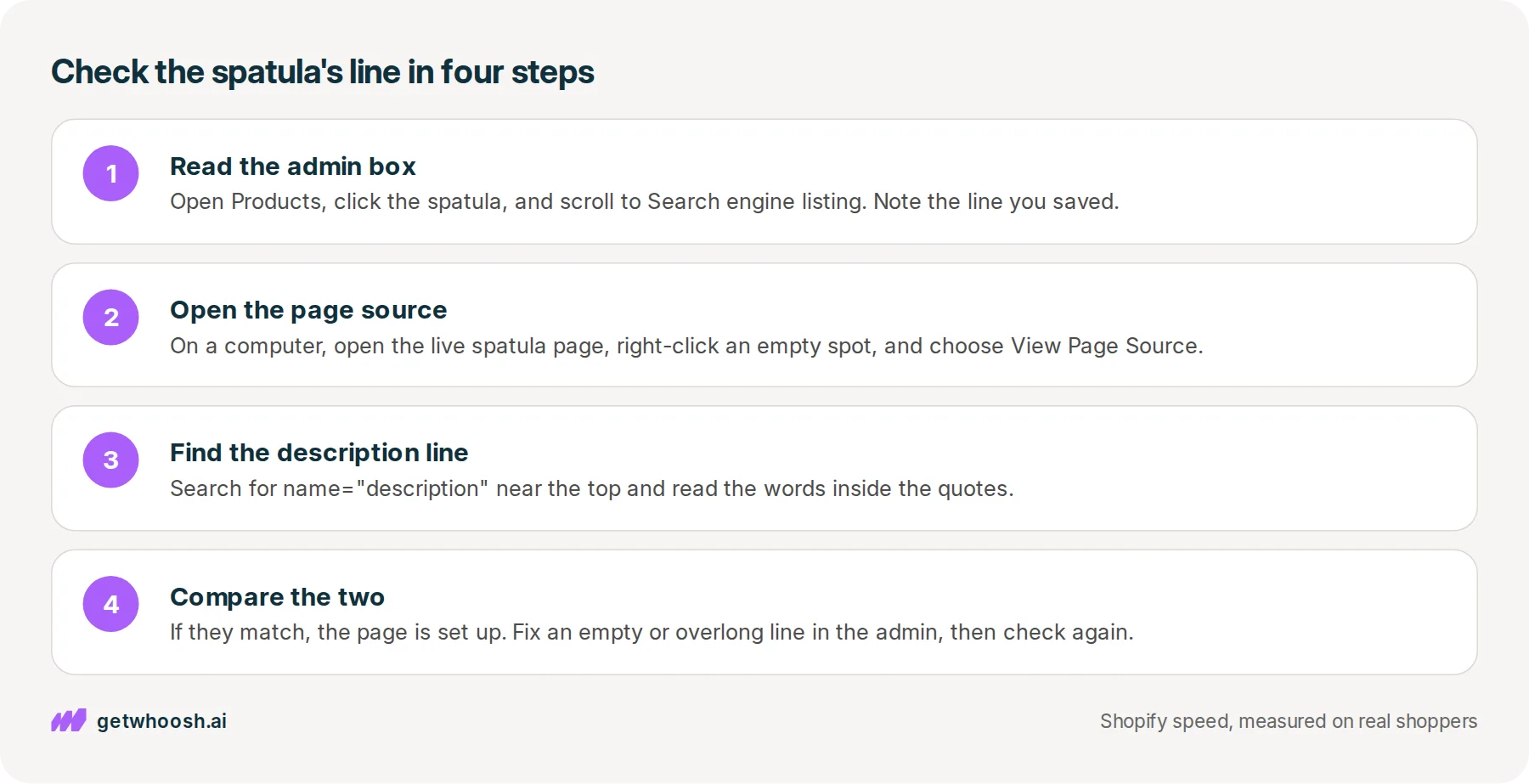
You do not need a checker to read that line for one product. In your Shopify admin, open Products, click the spatula, and scroll to the Search engine listing section, which is where Shopify’s guide says the line lives. The box there shows what you saved.
If that box is empty and you want help with the words, the meta description example post covers how to write one. This post is about checking it.
The admin shows what you saved. The live page is what the checker reads, and you can look at it too. On a computer, open the spatula’s product page, right-click an empty part of it, and choose View Page Source. That opens the raw text your store sent to the browser, before any of it became a page.
Press Ctrl+F, or Cmd+F on a Mac, and search for name="description". The line near the top looks like <meta name="description" content="...">, with your words where the dots are. Those are the words the page is actually sending.
If the words in the page source match the admin box, the spatula is set up. A checker given the same link is reading those same words, so for one product the only new thing it hands you is the count.
Check your store's real numbers
The free Whoosh audit measures your store on real shopper data, names the scripts in the way, and estimates what the delay is costing. No install, about a minute.
Free. No install. Results in about a minute.
Why a good score is not the line Google prints
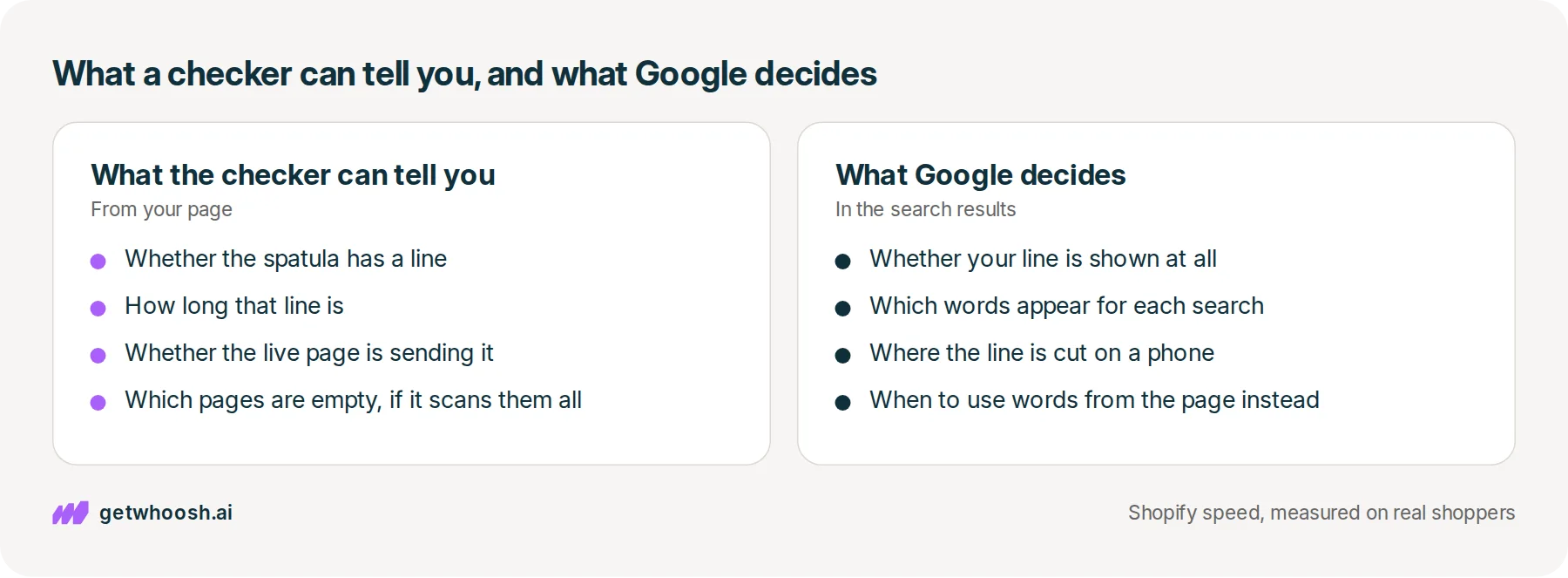
Here’s the catch. A passing score tells you the spatula has a line and that it is a sensible length. It does not tell you what a shopper will read under your link.
Google’s page on snippets says it mostly builds that text from the page itself, and uses your meta description when it describes the page better than the other words on the page. The same page says one page can show different text for different searches, so “metal spatula” and “spatula for eggs” might each get their own line. If your page source matches the admin and Google still shows other words, nothing on your store is broken. That is Google choosing.
Length works the same way. Google says there is no limit on how long a meta description can be, and that the text is cut to fit the width of the screen. The 160 characters a checker grades against is Shopify’s recommendation, not a rule Google enforces.
I know what you’re thinking. If Google can swap my words anyway, why bother checking?
Because Google can only pick your line if there is one, and Google’s page says it reaches for yours when it describes the page better. A missing line, or one that trails off past the cut, is the part you control, and that is what the score is good for.
Check the spatula’s product page, then scan the rest
Let’s start with the spatula, in the order you would click. Read the Search engine listing box in the admin, then open the live product page, choose View Page Source from the right-click menu, and search for the description line. If the two match and the line is not running far past the recommendation, the spatula is done.
That is fine for one product. A whole kitchen range is a different job, because Shopify’s guide shows the same box on every product, collection, webpage, and blog post. The homepage has its own, under Online Store, then Preferences, in the Social sharing image and SEO section.
Opening each of those to read one box is where a checker that scans the store earns its place. Razor Growth SEO Tech Audit is one Shopify app that looks across products, collections, pages, and articles, and lists the ones with missing, too long, or too short titles and descriptions.
It exports that list as a spreadsheet, and its App Store listing shows the price as free. For the catalog, that is the better buy, because it shows which pages are missing a line in one pass, which no amount of pasting the spatula’s link will do.
It still grades the line you saved, not the one Google prints. You can stop once every page you sell from has its own line and the page source matches the admin.
Now, the line earned the tap. What does the shopper see next? They open the spatula’s product page expecting the spatula, and if a chat widget or a signup popup gets its turn first, they can be looking at an empty space where the photo should be.
That is the one job Whoosh does here. Smart App Loading holds your other apps until the product photo is on screen, without removing those apps or copying your theme. It is US$99 a month with a 7-day free trial, and Nakie’s published case study shows the store’s load time falling from 4.8 seconds to 1.35 seconds.
To see what reaches the spatula’s page before its photo does, run our speed check on that one link. If the photo is first and the line in the page source matches the admin, the shopper who tapped gets the spatula they read about.
Questions merchants ask
Can I put the same line on every product so they all pass?
They might all pass a length check, but Google's page on snippets says identical descriptions on every page are not helpful, because each page turns up in results on its own. A line about your whole range sitting under the spatula's link does not tell the shopper which product this is.
Can I do the page source check on my phone?
View Page Source is a menu in desktop browsers, so do that step on a computer. A checker that takes a link works from any browser, which makes it the quicker look when you are away from your desk.
How do I check the line on my homepage?
Shopify keeps the homepage line in a different spot from a product's. It is under Online Store, then Preferences, in the Social sharing image and SEO section. Then open your homepage, choose View Page Source, and search for the description line the same way.
I changed the line in the admin. Why does Google still show the old words?
Check the page source first. If it shows your new line, the store is sending it. Google's page on snippets says it mostly builds the text from the page, so the words in results might not match what you entered, and that part is Google's call.
Sources (4, checked 1 Oct 2026)
- 1 Google Search Central on controlling snippets in search results (developers.google.com, checked 1 Oct 2026)
- 2 Shopify on how to write meta descriptions (shopify.com, checked 1 Oct 2026)
- 3 Razor Growth SEO Tech Audit on the Shopify App Store (apps.shopify.com, checked 1 Oct 2026)
- 4 Whoosh case study: how Nakie cut load times from 4.8s to 1.35s (getwhoosh.ai, checked 1 Oct 2026)
The 160 character recommendation and the admin paths come from Shopify's guide to meta descriptions, and what Google prints comes from Google's page on snippets. The catalog scan is described from its App Store listing, and the one store result is Nakie's published case study.
How posts are chosen, sourced, checked and corrected: our editorial policy.
Written by Edward Cameron Founder, Whoosh, Sydney, Australia
Edward Cameron is the founder of Whoosh, the Shopify speed app made in Sydney and on the Shopify App Store since August 2025. He writes here about what slows a Shopify product page and how to check it on your own store.
Keep reading
All posts
Agentic commerce 6 min read
What does a meta description generator do for a Shopify product?
Your spatula's Google line is blank, so you try a meta description generator. Here is what it drafts, where Shopify keeps that line, and the one read you do before you save it.

Agentic commerce 6 min read
What is a good meta description example for a Shopify product?
A shopper searching for a spatula reads the short line under each Google link before they tap. Here is Shopify's own example of that line, why the first words matter most, and where you type yours.

Agentic commerce 6 min read
What should your Shopify homepage meta description say?
A shopper searching for sustainable clothes reads one line under your homepage link before they tap. Here is what that line should say about your whole store, where Shopify keeps it, and what the homepage has to show next.
