 Start Free Trial
 Whoosh vs Plug in Speed: what does each app speed up?
Your canvas tote's page feels slow on your phone. Plug in Speed makes the stored photo file smaller, and on two plans it trims the theme's code. Whoosh makes the popup, chat, and reviews wait for the photo. One look at the tote page, and one in the app, tells you which you need.

Edward Cameron · Founder, Whoosh
7 min read

In short
Plug in Speed shrinks the photo files you uploaded, and on its Standard and Premium plans it also minifies your theme's CSS and JavaScript. Whoosh does neither. It makes the popup, chat, and reviews wait until the product photo is on screen, then tests that on half your visits. Open your product page on your phone: a popup beating the photo is Whoosh's job, and a photo file that's still the full-size original is Plug in Speed's.
- Plug in Speed works on files: it compresses the tote photo stored in your admin, and on Standard and Premium it minifies the theme's CSS and JavaScript.
- Free and Lite compress images only. The code part starts on Standard.
- Shopify already sends phones a smaller copy of the photo and already minifies theme code, so check what is left before you pay for either.
- Whoosh works on timing: the popup, chat, and reviews wait until the tote photo is on screen, and a 50/50 test shows whether sales moved.
- Open the tote on your phone, then find its photo in Plug in Speed. Whichever problem you actually saw picks the app.
You sell a canvas tote, and two speed apps want the job
You sell a natural canvas tote with long cotton handles. It’s the product most people land on, and its page feels slow when you open it on your phone, so you searched the Shopify App Store and found two speed apps that sound alike: Plug in Speed and Whoosh.
They work on different things. Plug in Speed works on the files behind the tote page, meaning the photo you uploaded and, on two of its plans, the theme’s code. Whoosh works on the order things arrive, so the tote photo shows up before your popup, chat, and reviews. We make Whoosh, so read the table with that in mind.
So Plug in Speed vs Whoosh comes down to a question you can answer on your own phone. When the tote page opens, is the photo slow because its file is big, or because something else got to the screen first?
What each app does to the tote page
Let’s start with what Shopify already does, because it’s more than most people expect. When a shopper taps the tote, Shopify doesn’t send them the full photo you uploaded. It keeps that file and makes a smaller copy for their screen, and when the phone can show a lighter kind of file, it gets that instead of the JPEG. Shopify’s image guide names those lighter files WebP and AVIF, and says you do not need to shrink the photo before you upload it.
The theme’s code travels the same way. The CSS sets how the tote page looks, and the JavaScript makes the photo gallery swipe. Taking the gaps and notes out of those files leaves less to download, which people call minification, and Shopify’s platform docs say the files it sends are already minified and compressed on the way to the phone.
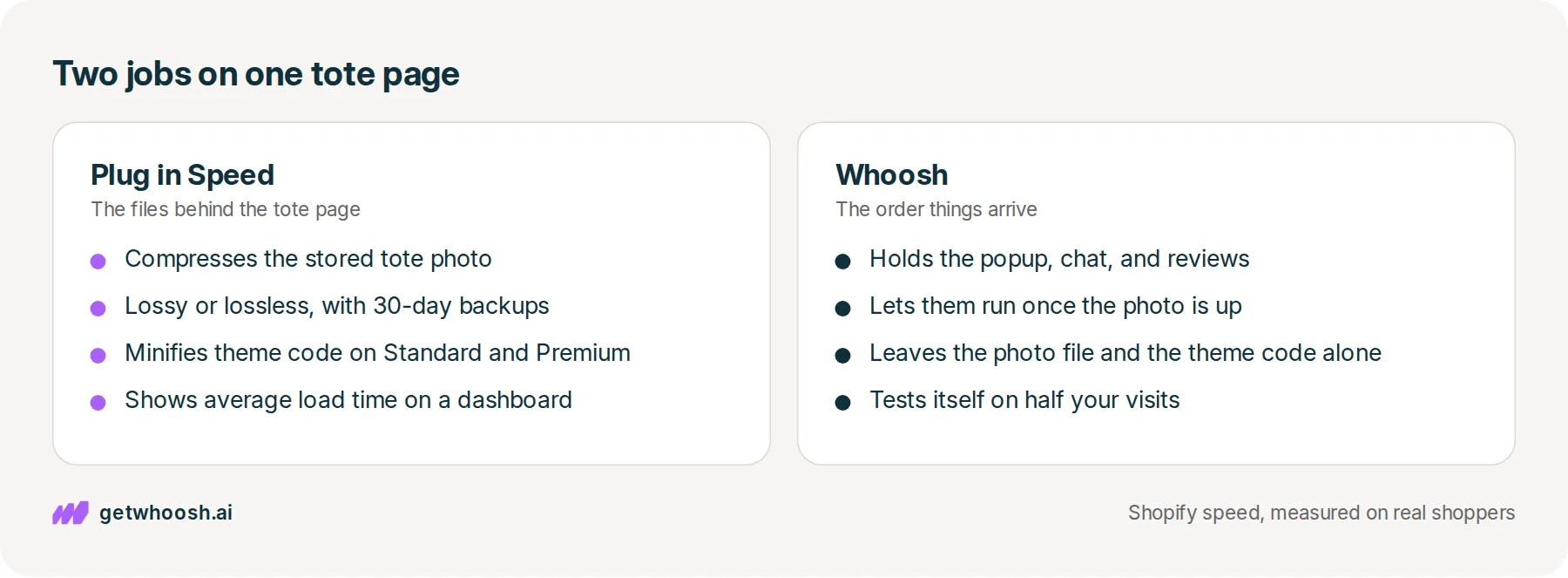
Plug in Speed works one step earlier, on the file sitting in your admin. The Plug in Speed Shopify app, listed as Plug in Speed - SEO Page Speed by the developer Plug in Useful, compresses that stored tote photo, which means rewriting it as a smaller file.
Its App Store listing offers two kinds. Lossless keeps every detail and saves less, while lossy drops detail you’re unlikely to notice and saves more, and the listing mentions 30-day backups.
On the Standard and Premium plans, Plug in Speed also minifies the theme’s CSS and JavaScript itself. The Free and Lite plans compress images only, and the listing also describes a speed dashboard that shows your average load time.
Now Whoosh, which leaves the tote photo file and the theme’s code alone. When the tote page opens, your other apps start loading too: the email popup, the chat bubble, the review stars, each one a small program from another company.
Whoosh holds those programs back until the tote photo is on screen, then lets them run, so the popup still asks for an email.
To show whether sales moved, it splits your visitors 50/50, half with Whoosh on and half without, and compares sales.
Here’s the same thing side by side.
| What you get | Whoosh | Plug in Speed |
|---|---|---|
| What it works on | When the popup, chat, and reviews run on the tote page | The tote photo file in your admin, and theme code on two plans |
| The tote photo | Does not compress or replace the stored file | Compresses the stored file, lossy or lossless, with 30-day backups |
| Theme CSS and JavaScript | Does not minify it; does not copy the theme | Minifies it on Standard and Premium; Free and Lite compress images only |
| Your other apps | Holds the popup, chat, and reviews until the tote photo is on screen | Not on the listing, which names images and theme code |
| How you see it worked | 50/50 test on your own store, compared on sales | Speed dashboard with your average load time |
| Price | Smart App Loading US$99/mo, AI Page Preloading US$99/mo, Whoosh Max US$149/mo; 7-day free trial; App Store listing | Free for 40 images a month; Lite US$19 for 1,000, Standard US$29 for 4,000, Premium US$39 for 10,000 a month; App Store listing |
| Where it is stronger | A popup, chat, or reviews box beats the tote photo, and you want a test on sales | The stored tote photo is the full-size original, or you want theme code minified on Standard or Premium |
Check your store's real numbers
The free Whoosh audit measures your store on real shopper data, names the scripts in the way, and estimates what the delay is costing. No install, about a minute.
Free. No install. Results in about a minute.
Why a smaller tote photo can still lose to the chat bubble
Here’s the awkward part. Compressing the tote photo doesn’t change when your chat bubble shows up, because a smaller file and a later popup are two different fixes, and neither app does the other one.
I know what you’re thinking. You already installed Plug in Speed, ran it over every photo, and the tote page still feels slow. If the chat bubble’s program started before the tote photo yesterday, it starts before it today, because a lighter file doesn’t change which program the phone runs first.
That cuts the other way too, and this is where Plug in Speed is the better buy. If the tote photo in your admin is the full-size original off the camera and you want it smaller, Whoosh won’t touch it. Plug in Speed will, and its free plan covers 40 images a month, so you can try the tote before you pay anything.
Just know what you’re buying. Shopify still makes the phone’s copy from that file, so the shopper was already getting a smaller photo than the one in your admin, and the app’s main change is to the file you store.
The theme’s code is the other reason to pick Plug in Speed, and only on Standard or Premium. If a developer or a speed report has pointed at your theme’s CSS and JavaScript, those two plans minify it, and Free and Lite don’t.
Before you upgrade only for that, Shopify’s platform docs say the files it sends are already minified and compressed. Plug in Speed’s minify, on Standard and Premium, is a second pass on the theme’s own code.
Whoosh is the buy when the photo file is fine and something else gets there first. A signup popup covers the tote, the chat bubble pops up, or the review stars load while the photo is still blank. Whoosh doesn’t compress images or minify code, so it isn’t a replacement for Plug in Speed either.
Can the two share a store? Yes, because one works on files and the other works on timing. After you install either one, open the tote on your phone and tap the popup, the chat, and Add to cart, so you know each of them still works.
Open the tote on your phone, then find its photo in Plug in Speed
Two looks at one tote. Start with the phone, because that’s the one a shopper sees.
Open the tote’s live product page on your phone, using the link a shopper would tap, in a private tab so nothing is remembered from your last visit. Watch the first few moments closely. Does the tote photo arrive first, or does a signup popup, a chat bubble, or a row of review stars get there before it?
If it happens too quickly to call, record your screen while the page loads and play it back slowly. You’re only looking for one thing, which is whatever reaches the screen before the canvas tote does.
Now open Plug in Speed in your Shopify admin and find the tote photo in its image list. Has that file been compressed yet, or is it still the original you uploaded? If you haven’t installed the app, the free plan is enough to run this one photo through it.
If a popup or chat beat the tote photo, that’s Whoosh’s job, and the plans are in the table above. If the photo came first but slowly, and the stored file was still the original, that’s Plug in Speed’s job. What an image optimizer app does on Shopify explains which copy of the photo an app like that changes.
If neither showed up, and the wait was a white screen before anything appeared, neither app is aimed at it. The speed app comparison matches that wait to the apps that clear it.
If you saw both, compress the tote photo first, since the free plan costs nothing to try, then deal with the popup. Either way, do the two looks before you install anything, because whichever one you actually saw on the tote picks the app.
Questions merchants ask
Does Plug in Speed's free plan do anything for my tote page?
It compresses up to 40 images a month, lossy or lossless, which is enough to try the tote and a few best sellers. It does not minify the theme's code; that starts on Standard. Shopify was already sending phones a smaller copy, so open the tote page afterwards and see whether it looks any different to you.
Will lossy compression make my canvas tote look worse?
Lossy drops some detail to save more space, while lossless keeps every detail and saves less. Try lossy on the tote first, then zoom in on the weave and the stitching on your phone. The listing mentions 30-day backups, so ask the developer how to put the original back if you don't like it.
Can I run Plug in Speed and Whoosh on the same store?
Yes. Plug in Speed works on the photo files and the theme's code, and Whoosh works on when your other apps run, so they are not fighting over one job. After installing either, tap the popup, the chat, and Add to cart on your phone to check they still work.
Does Whoosh change my tote photo?
No. Whoosh does not compress, rename, or replace the photo you uploaded. It changes when the popup, chat, and reviews run, so the photo you chose is still the one the shopper sees.
Sources (4, checked 11 Oct 2026)
- 1 Plug in Speed - SEO Page Speed on the Shopify App Store (apps.shopify.com, checked 11 Oct 2026)
- 2 Whoosh on the Shopify App Store (apps.shopify.com, checked 11 Oct 2026)
- 3 Shopify's guide to image optimization (shopify.com, checked 11 Oct 2026)
- 4 Shopify theme docs on platform performance and minification (shopify.dev, checked 11 Oct 2026)
We make Whoosh, so our app is one side of this comparison. Plug in Speed's plans and features come from its Shopify App Store listing and Whoosh's from ours, both checked on 11 Oct 2026, with no unpublished store data.
How posts are chosen, sourced, checked and corrected: our editorial policy.
Written by Edward Cameron Founder, Whoosh, Sydney, Australia
Edward Cameron is the founder of Whoosh, the Shopify speed app made in Sydney and on the Shopify App Store since August 2025. He writes here about what slows a Shopify product page and how to check it on your own store.
Next moves
Turn this into sales
Three moves, five minutes. Each one ticks itself off.
0 of 3 done
-
Measure the lift on your own store
7-day free trial on the Shopify App Store. No code, no theme edits, and a control group so the numbers are yours.
Keep reading
All posts
Core Web Vitals 7 min read
Whoosh vs Avada SEO: which one does your product page need?
You searched for a speed app and found Avada, an SEO app with a speed booster on its plans. It works on what Google shows before the tap. Whoosh works on what the shopper sees after it. Two checks on one mug tell you which one you were shopping for.

Speed apps & tools 7 min read
Which Shopify speed optimization app should you install?
Every speed app on the Shopify App Store promises a faster store. Each one clears a different thing out of your product photo's way, and one look at your own product page tells you which one you need.

Core Web Vitals 7 min read
Whoosh vs RoarTheme: is the free next-page app enough?
A shopper is looking at your navy beanie and about to tap the charcoal one beside it. RoarTheme's free app fetches that next page while they look. Whoosh does that too, makes the popup and chat wait for the navy photo, and tests it on your sales. One tap on your phone picks the row.
